On this page
To send a payment link in Little Hotelier, open the reservation and click Send Payment Request. Enter the amount, click Create request, then email it or copy the link. You need Little Hotelier Pay switched on, and the link is valid for 48 hours. Little Hotelier doesn't follow up for you. Hotelier Tools' payment reminders do: on the days you choose, they email unpaid guests a link for what they still owe.
Little Hotelier screens below were checked against its help centre as of November 2026.
How to send a payment request in Little Hotelier
Payment requests are part of Little Hotelier Pay, Little Hotelier's built-in payment service. The requests run on SiteMinder's payment platform, which is why Hotelier Tools' screens call them SiteMinder Pay. Switch it on first under Front Desk > Setup > Guest Payment Options > Payment Gateways. Requests don't work with a third-party gateway (help centre).
On a computer:
- Open the reservation in Front Desk and click Send Payment Request.
- Check the reservation, guest name and amount, and add a reason and a message for the guest.
- Click Create request.
- To email it, choose the email template, check the guest's address, click Preview email and then Send request. Or copy the link and paste it into WhatsApp, a text or an email.
On the mobile app: open the reservation, tap Take payment, fill in the Request tab, choose email, SMS or a link, and tap Send request.
What to know before you send one:
- 48 hours. The link is valid for 48 hours. After that the guest sees that the request is no longer active.
- No edits. If the amount changes, cancel the request and create a new one. Cancel it too if the booking is cancelled.
- Where to follow it. My apps > Payments > Payment requests lists every request. From Actions you can cancel one or copy its link to share again. A paid request also shows on the reservation's Payments tab.
- Surcharges. An Apply surcharge option appears when you create a request. Card surcharges aren't allowed everywhere, so check your local rules.
- Hotel collect only. Requests don't work for channel-collect bookings or for an OTA's virtual card.
Deposits and balances: what Little Hotelier automates
Little Hotelier has two automatic options, both with Little Hotelier Pay:
| Feature | What it does | Where |
|---|---|---|
| Automatic deposits | Your booking engine takes a deposit when a guest books direct: Full amount, Percentage, First night, Fixed amount or No deposit | Front Desk > Setup > Guest Payment Options > Property Level Deposits (help centre) |
| Automated payments | Charges the outstanding balance on the guest's stored card a set number of days before check-in, on check-in or on check-out | My Apps > Payments > Automated payments > Create a rule (FAQ) |
Automated payments need a card that works. When a charge fails, or there is no card, Little Hotelier suggests sending a payment request, and from then on it is a person's job: send it, wait, and send another when the 48 hours run out.
Prepaid on Booking.com or Expedia? Don't ask twice
A Booking.com "pre-paid" booking or an Expedia Collect booking was paid to the channel. Little Hotelier still shows the stay as outstanding until someone records that money as an "OTA Paid" payment. Send a reminder on that balance and you ask the guest to pay again for nights they already paid.
There is a second trap. Little Hotelier prices the nights at its own rates, while the guest paid the channel's price (with a Genius or mobile discount, for example). So even after the OTA payment is recorded, the outstanding amount can mix two things:
- Nights added at the desk after the booking: the channel never sold them, so the guest pays them at the property.
- The gap between your rates and the channel's price: the guest already paid the channel's price. That gap is not theirs to pay.
Take a 2-night prepaid booking that is extended at the desk by one €75 night. Little Hotelier may show €88 outstanding, but the guest owes €75. Hotelier Tools' AI assistant reads the stay this way and tells the desk what the guest owes at the property, not just Little Hotelier's figure. For invalid Booking.com cards and no-shows, see what to do with an invalid card.
The faster way: payment reminders with a link
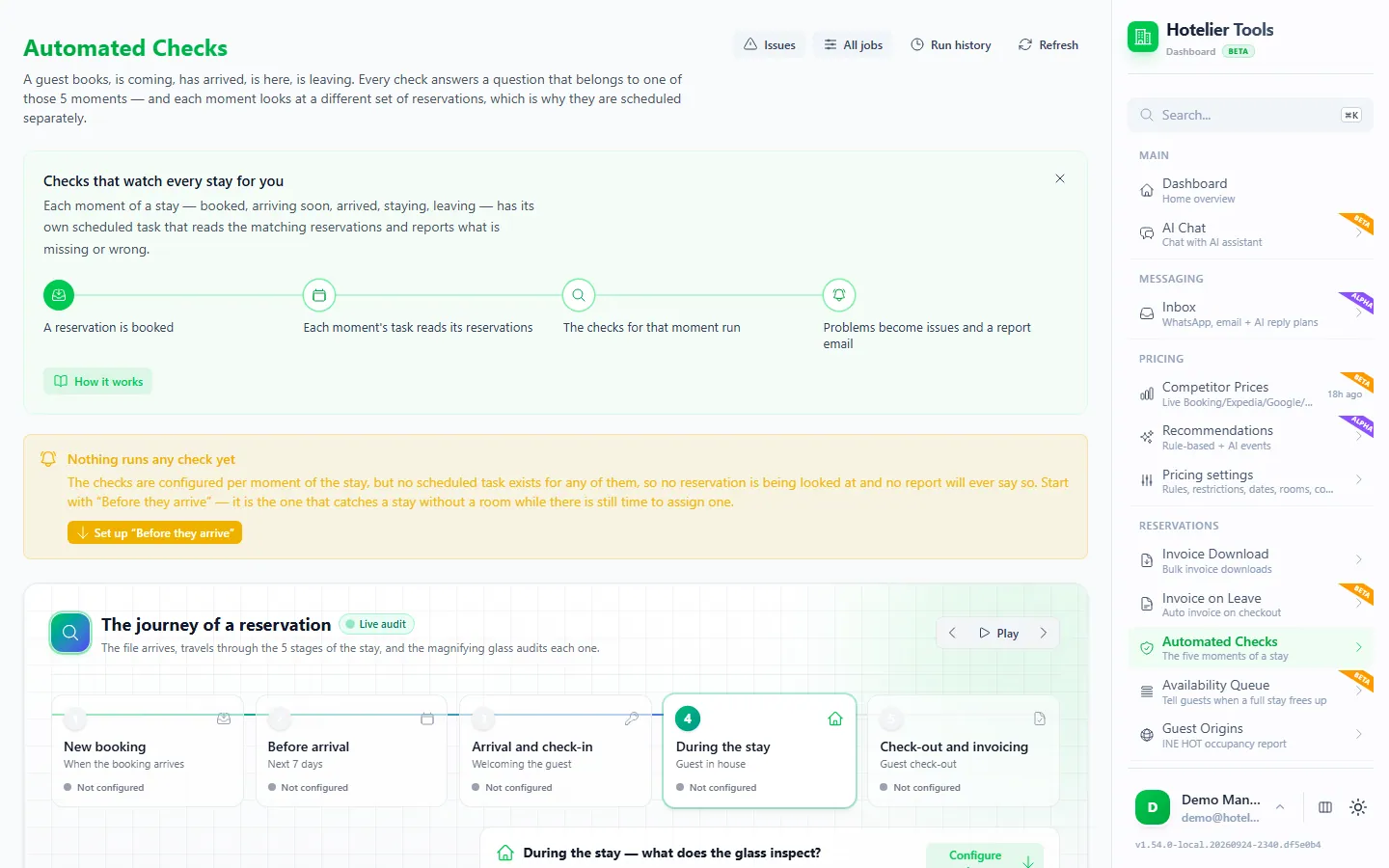
Hotelier Tools' Payment reminders (/automated-checks/payments, part of the automated checks, beta) find the bookings that still owe money and remind the guest on the days you choose, with a link if you want. They also send your team a summary. Nothing is charged: the guest decides whether to pay.
- Open Automated Checks and the Payment reminders card, or go straight to
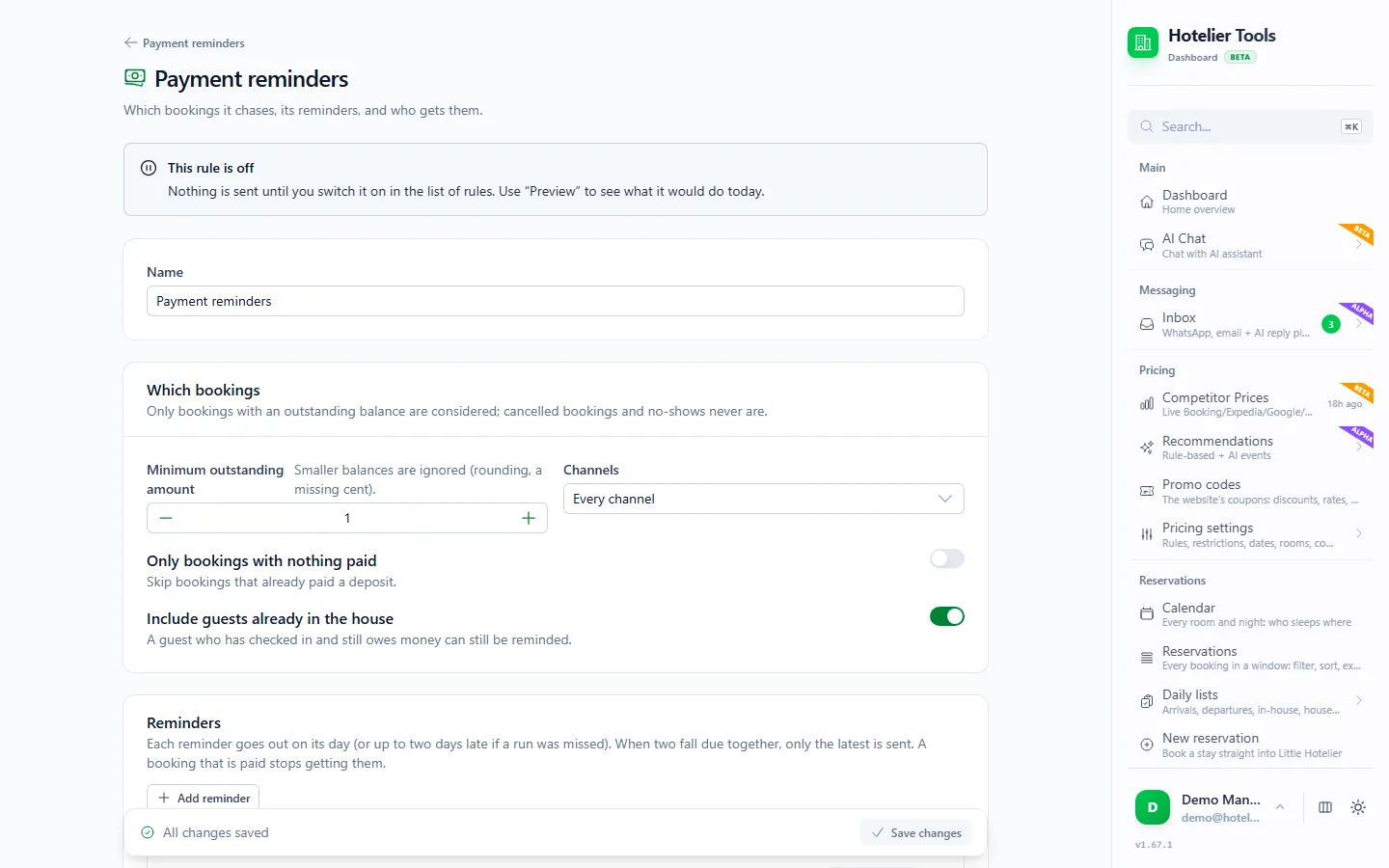
/automated-checks/payments. Click New rule. A new rule starts switched off. - Under Which bookings, set the Minimum outstanding amount (to skip a missing cent). Choose whether to skip deposits already paid (Only bookings with nothing paid) and whether to Include guests already in the house. Under Channels, pick Every channel, Only these channels or Every channel except these.
- Add up to six Reminders. Each is a number of days before, on or after the booking, the check-in or the check-out. For example: 7 days before check-in, then 2 days before check-in.
- For each reminder, choose what the guest gets: Reminder only, Reminder with a payment link, or Payment request sent by SiteMinder Pay (SiteMinder's own email). Our text goes out in the guest's language, or click Write my own text. Switch on Tell the team to add the booking to the team's summary, with a note.
- Click Preview today to see which guests the rule would write to today. It reads Little Hotelier and sends nothing.
- Switch the rule on and give it a schedule. The recommended one is Every day at 10:00.
What keeps it safe
- Never twice. Each reminder is recorded for each booking before it is sent, so a retried run, two schedules or a manual run can't repeat it.
- One reminder a day per guest, across all your rules.
- Catch-up without a flood. A reminder still goes out up to two days late if a run was missed. If several are due at once, only the latest is sent.
- The amount is fresh. The balance is read from the booking just before sending, and a booking paid since then gets nothing. Cancelled bookings and no-shows are never chased.
- Reused links. A pending link for the same booking and amount, with more than two hours left, is reused instead of creating a second one.
- Told when it's paid. Each run follows the links its reminders sent. When one is paid, the team gets a "payments received" email (if the rule tells the team).
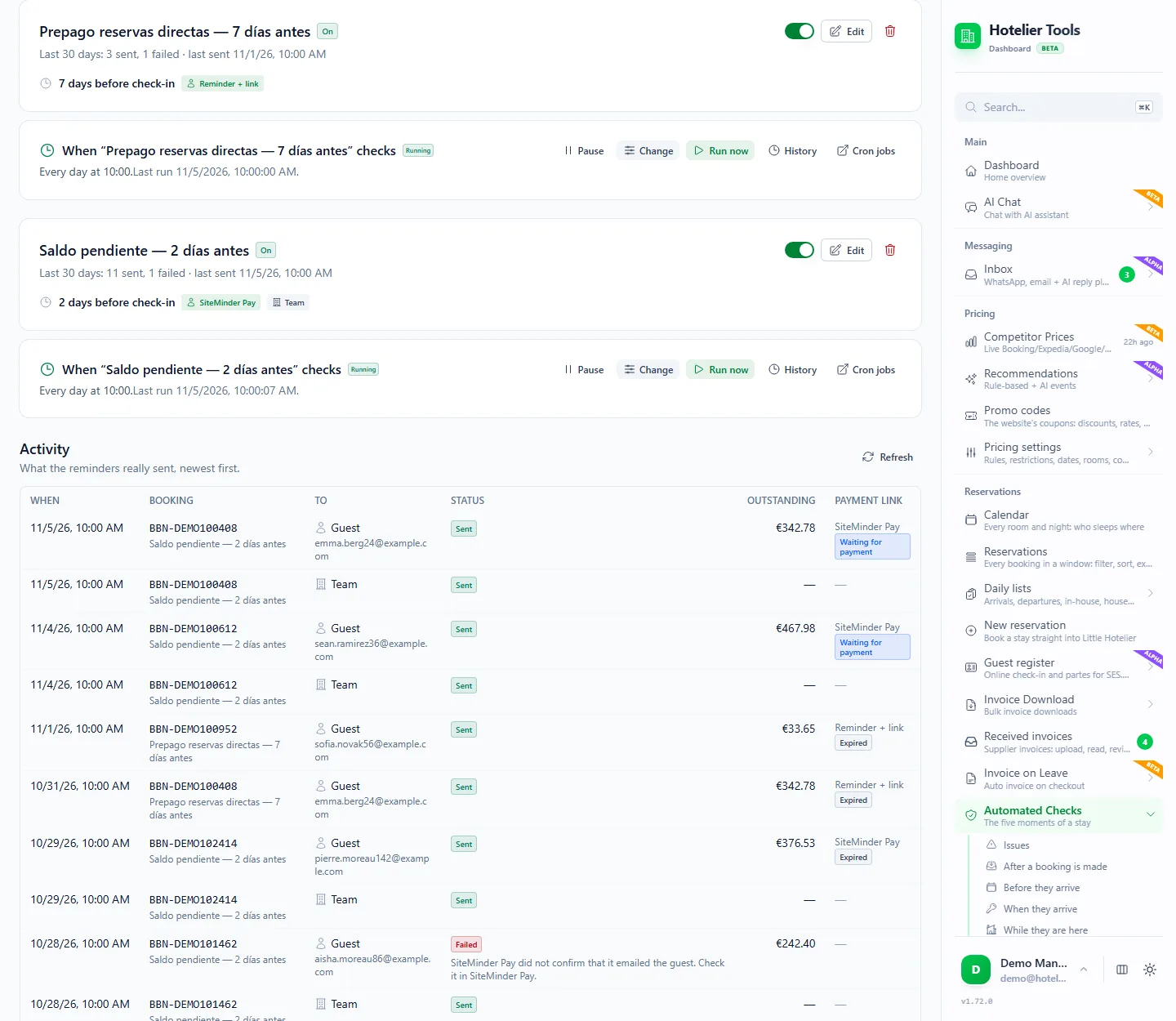
To test one reminder, Send now… sends it to a single booking whatever its day. Everything sent is listed under Activity: when, booking, guest or team, status, outstanding amount and the link's state (Waiting for payment, Paid, Expired, Cancelled).
Prepaid stays are handled for you
When the booking says it was prepaid on Booking.com or Expedia, the reminder never asks for the channel's money:
- The amount is proven (stated in the booking's comments, or exactly the room sold) and the property switch Register proven OTA prepayments (whole property) is on: Hotelier Tools records one "OTA Paid" payment in Little Hotelier, then asks only for nights added and extras.
- The amount isn't proven (an Expedia stay with extras, another currency): no email to the guest. The team summary lists it: check it and record the payment.
- Nothing left to pay: the booking is left out.
You choose when that payment is recorded under When to register them: At the checks (before arrival and at checkout), or Some hours after arrival (0 to 48 hours, 1 by default). With the second, desk changes made at check-in, such as extras or a room move, are in the balance first. It then needs the hourly task Register OTA prepayments after arrival, which you schedule yourself.
One link for one booking
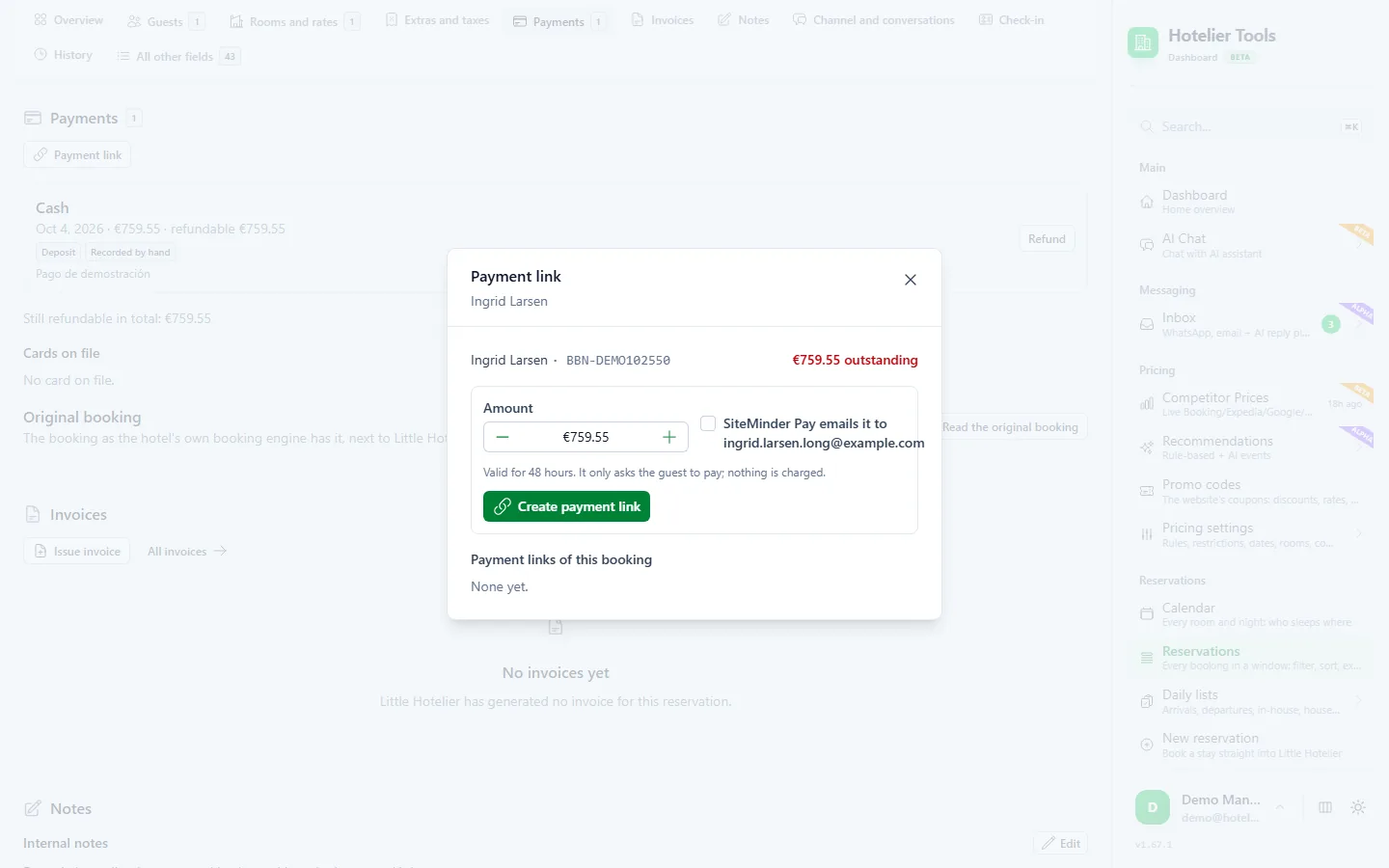
Not every payment needs a rule. Open a reservation at /reservations/<number> and, under Payments, click Payment link. The same button sits next to a balance on the daily lists and in the inbox's reservation panel.
- The window shows what the booking owes and its earlier links, each with its state.
- Ask for the full balance or part of it (a deposit, for example) in Amount.
- Tick SiteMinder Pay emails it to … to have it emailed, or leave it unticked and Copy the link to send it yourself.
- Click Create payment link. A pending link can be cancelled from the same window.
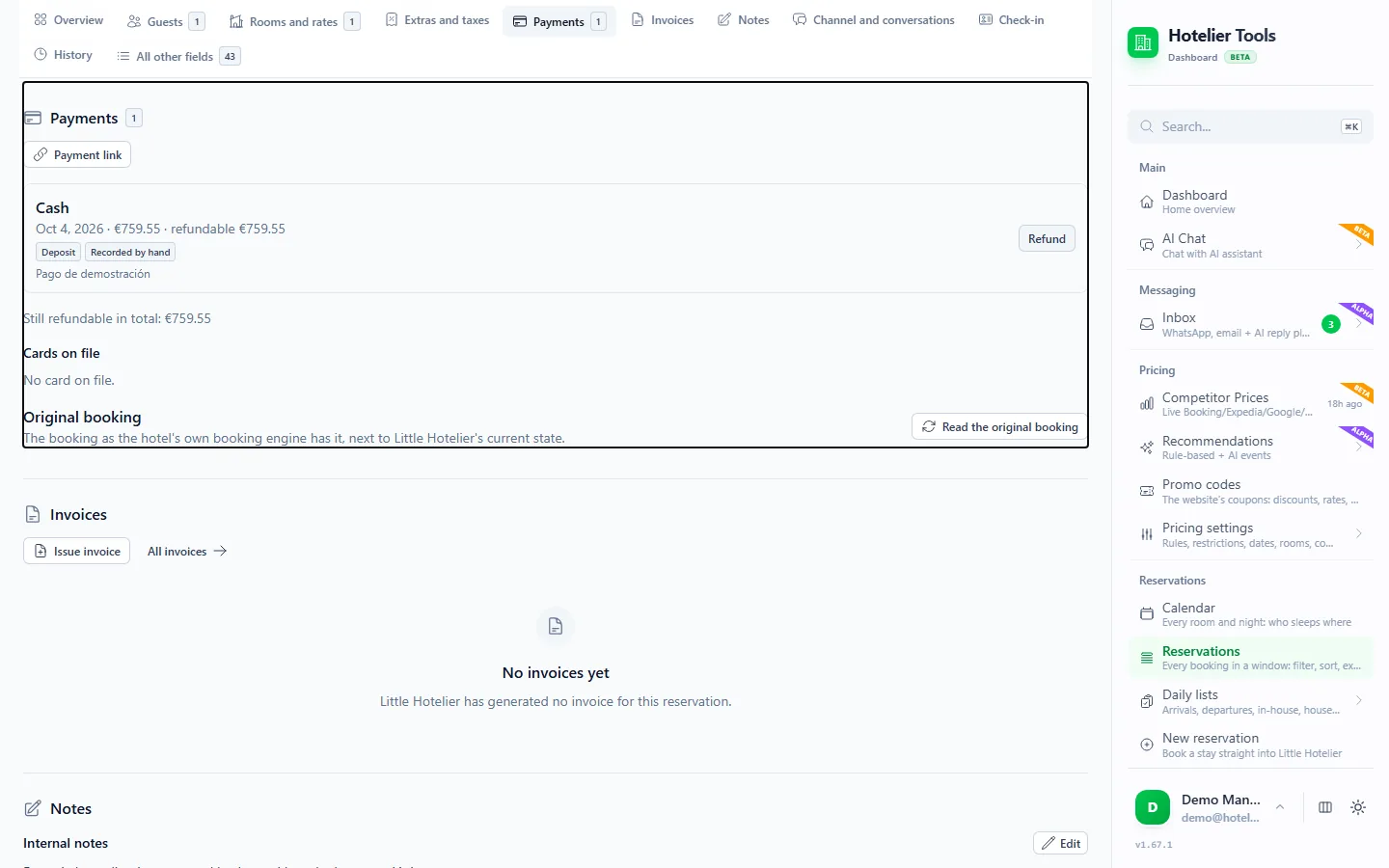
The Payments section also handles refunds. Click Refund on a payment, enter a full or partial amount (a comma or a point both work), and Hotelier Tools checks it against what is still refundable before asking Little Hotelier, once. If Little Hotelier doesn't confirm, it tells you to check the reservation before refunding again, instead of sending a second refund.
For developers and AI: the same link exists in the REST API (POST /api/v1/reservations/{id}/payment-link, guest emailed only with "notifyGuest": true) and as the create_payment_link tool, which asks for your approval in the AI chat. Through the AI chat or the API, a card payment taken on the desk terminal can be recorded on the stay with the brand and last four digits only. It charges nothing. A request with anything that looks like a full card number is refused. See the REST API and MCP page.
Try it in the live demo
Open the same screen in the Hotelier Tools demo, filled with invented data. No sign-up, nothing to install.
On Settings > Team, making and cancelling links needs the Record payments permission, refunds need Refund payments, and editing rules needs Run payment reminders. The dashboard is free for every hotel until billing starts on 10 January 2027.
See also: sending the invoice at checkout, the front-desk daily checklist, Booking.com invalid card or no-show.
Summary
- In Little Hotelier, Send Payment Request on the reservation creates a link valid for 48 hours. It needs Little Hotelier Pay and works only for bookings you collect yourself.
- Deposits for direct bookings and automatic card charges are built in. Reminder emails for unpaid balances are not.
- Hotelier Tools' Payment reminders email unpaid guests a link on the days you choose, never twice, and tell the team when a link is paid.
- Prepaid Booking.com and Expedia stays are never asked again for the channel's money: only nights and extras added at the property.
Frequently asked questions
How do I send a payment link from Little Hotelier?
Open the reservation in Front Desk and click Send Payment Request. Fill in the amount, reason and message, click Create request, then email it from a template or copy the link to send by chat or SMS. It needs Little Hotelier Pay switched on.
How long is a Little Hotelier payment link valid?
48 hours from when it is created. After that the guest sees that the request is no longer active. A request can't be edited: cancel it and create a new one if the amount changes.
Can I send a payment request for a Booking.com or Expedia booking?
Only when you collect the money yourself. Little Hotelier's payment requests don't work for channel-collect bookings or for the OTA's virtual cards. A prepaid Booking.com or Expedia Collect guest should only be asked for what was added at the property.
Does Little Hotelier send payment reminders automatically?
Its help centre describes automatic deposits for direct bookings and automated payments that charge a stored card, but not reminder emails for an unpaid balance. Hotelier Tools adds payment-reminder rules on top, with the same payment link.
Does Hotelier Tools charge the guest's card?
No. A payment link only asks the guest to pay on SiteMinder's secure page. Hotelier Tools never sees or stores card numbers and never charges a card.
Is Hotelier Tools part of Little Hotelier or SiteMinder?
No. Hotelier Tools is independent and not affiliated with or endorsed by SiteMinder or Little Hotelier. It connects with your hotel's own Little Hotelier login.