On this page
- The 8 reservation problems to catch before a guest arrives
- How to check them in Little Hotelier without opening every booking
- Night before or same day: when to run each check
- How to automate the checklist with Hotelier Tools
- What the email report looks like
- Limits, and what the checks never change
- Summary
Every day, check today's and tomorrow's arrivals for eight things: a room assigned, the balance paid, a valid card, an ID document, an address, the right number of guests, an arrival time, and no match with your do-not-rebook list. In Little Hotelier most of them fit on one screen: Front Desk > Reservations, filtered by check-in date. Hotelier Tools runs five of the eight automatically at five moments of the stay and emails you only what needs fixing.
The 8 reservation problems to catch before a guest arrives
- No room assigned. A booking without a room number is easy to miss until the guest is standing at the desk.
- Unpaid balance. You want to know before arrival whether to collect, chase a deposit or send a payment link.
- Invalid card on a Booking.com booking. Booking.com gives the guest a deadline to update the card, so finding it late costs you options.
- Missing ID document. Many countries require it for guest registration. See guest registration rules by country.
- Missing address or country. Needed for registration, for official statistics such as Spain's INE survey, and for a correct invoice.
- Wrong number of guests. Zero adults, or two guests in a booking for four, can throw off registration, breakfast and any tourist tax charged per person.
- No arrival time. Late arrivals and self check-in need a plan the day before.
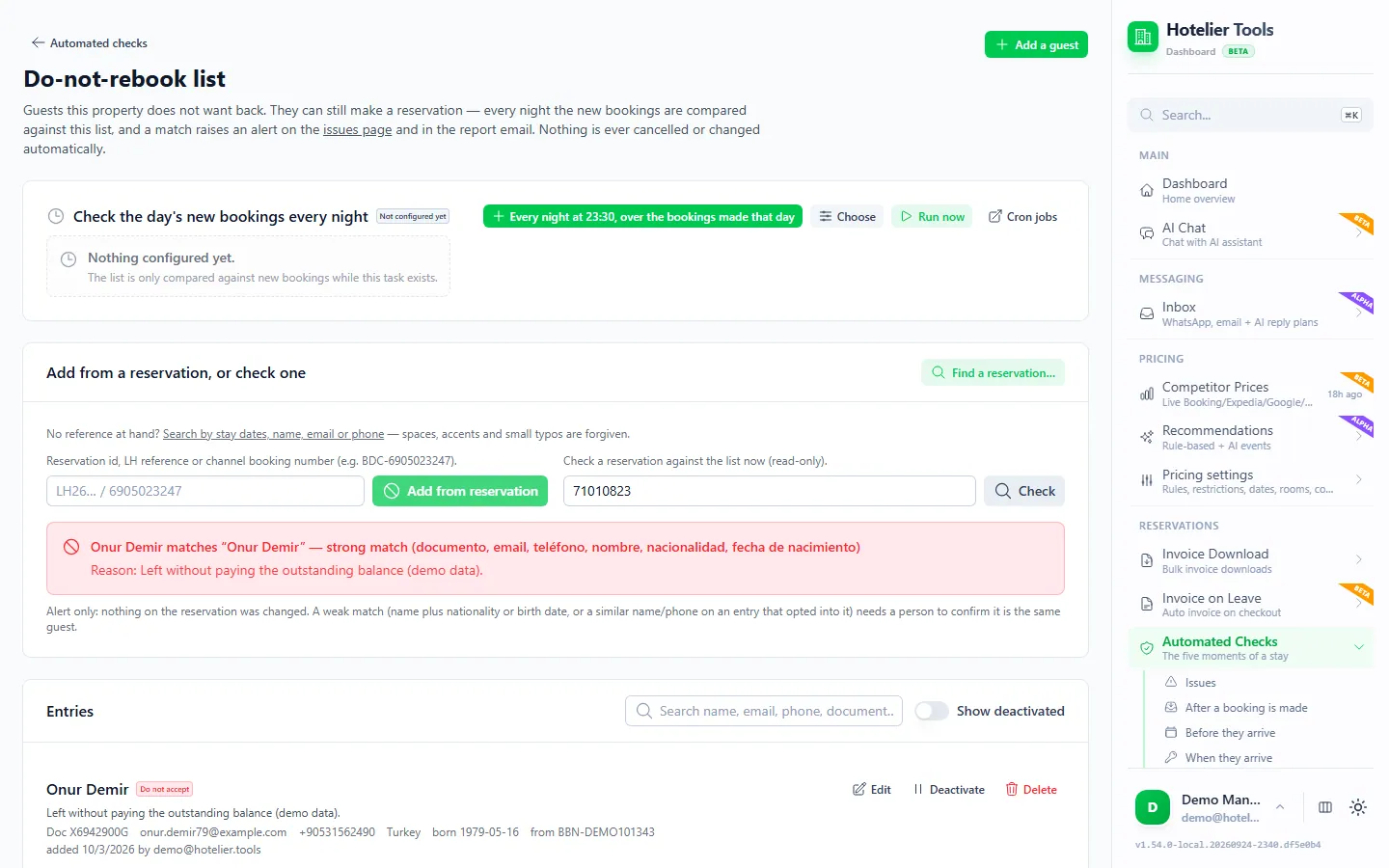
- A guest you asked not to come back. Better to know before they arrive. See how to keep a do-not-rent list.
Copy this table as your printable checklist:
| Check | Where to look in Little Hotelier | Automated in Hotelier Tools |
|---|---|---|
| Room assigned | Room column in Reservations; unallocated counter on the Calendar | Yes |
| Balance paid | Outstanding column in Reservations | Yes |
| Valid card (Booking.com) | Channel Manager > reservation > Manage Reservation | No |
| ID document | Reservation > Guests tab | Yes |
| Address and country | Reservation > Details and Guests tabs | Yes |
| Number of guests | Occupants column in Reservations | No |
| Arrival time | ETA column in Reservations | No |
| Do-not-rebook match | Your own list | Yes |
How to check them in Little Hotelier without opening every booking
- Go to My Apps > Front Desk > Reservations.
- Set the date type to Check-in date, choose today and tomorrow (or the week ahead), set the status to Confirmed and click Search.
- Read across the columns: an empty Room, the Occupants count, a blank ETA and anything in Outstanding.
- Want it on paper? Click Export for a CSV. Guest phone numbers are left out of the file for security reasons.
Source: Run and export reservations information.
ID documents and addresses are the slow part. They sit on each reservation's Details and Guests tabs (help centre), so you have to open every arrival.
Invalid Booking.com cards
In Little Hotelier, open the booking under Channel Manager > Reservations, go to the Manage Reservation tab and click Report payment card as invalid to Booking.com (help centre).
As of October 2026, the guest then has 24 hours to update the card. For bookings made within 48 hours of check-in it is 12 hours, or until 3 pm on the check-in day, whichever comes first. If they don't, you can cancel until 3 pm (your local time) on the check-in day (Booking.com Partner Hub). That is why cards belong on the night-before list. Full walkthrough: Booking.com invalid card or no-show.
Night before or same day: when to run each check
Some problems need time to fix (a card, a room), others can only be checked once the guest is in front of you (the ID). Hotelier Tools splits the stay into five moments, each with its own scheduled task:
| Moment | Reservations it reads | What it checks |
|---|---|---|
| After a booking is made | Booked yesterday and today | Room, ID, address, do-not-rebook list |
| Before they arrive | Check-in from today to 7 days ahead (1–60, your choice) | Room, payment, do-not-rebook list |
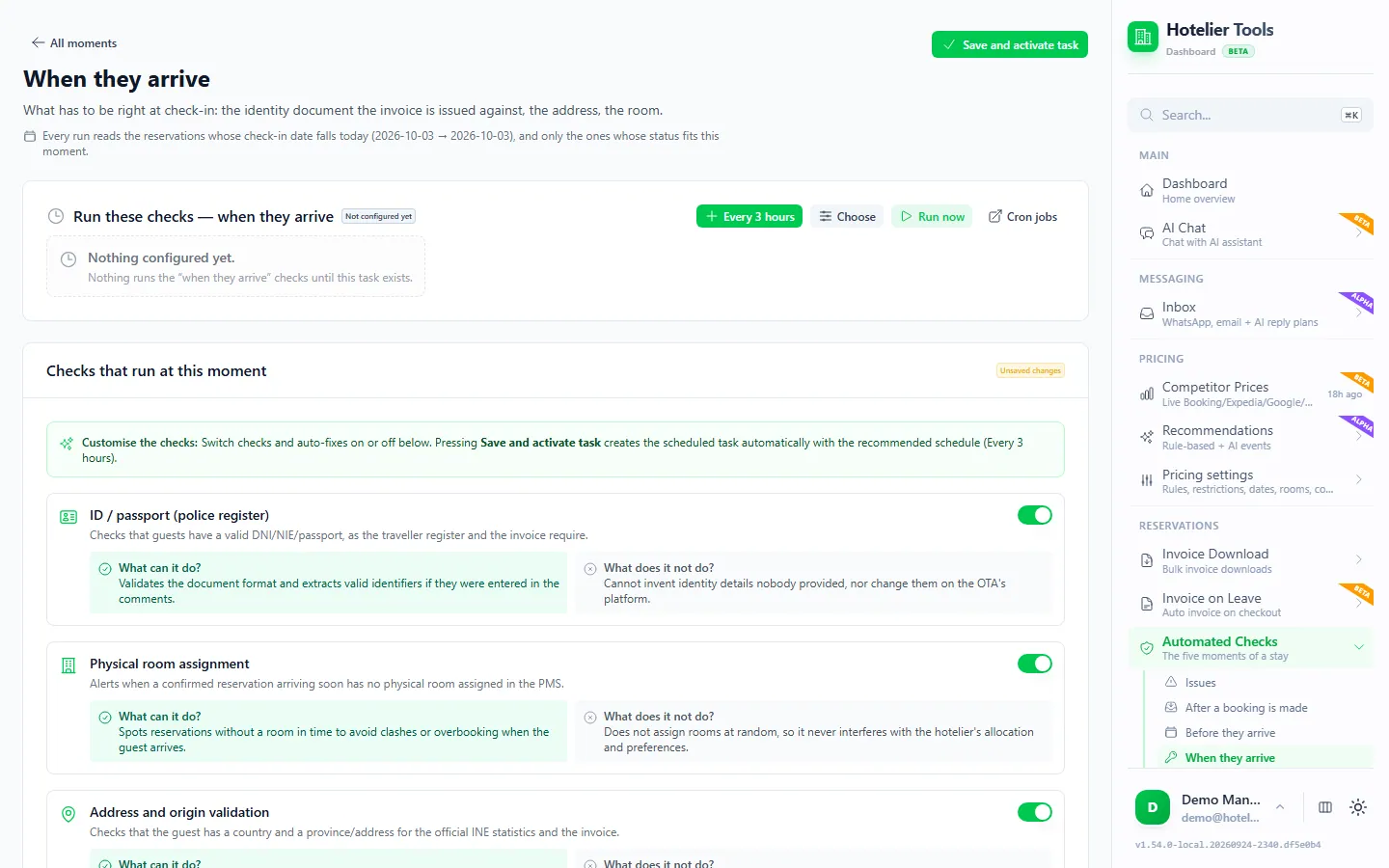
| When they arrive | Check-in today | ID, address, room |
| While they are here | Check-in in the last 7 days (adjustable) | ID, address |
| When they leave | Check-out today | ID, address, balance |
A simple rule: rooms, payments and cards the night before; ID and address on the day of arrival; the balance on the day of departure.
How to automate the checklist with Hotelier Tools
- Sign up at dashboard.hotelier.tools and connect Little Hotelier on Credentials.
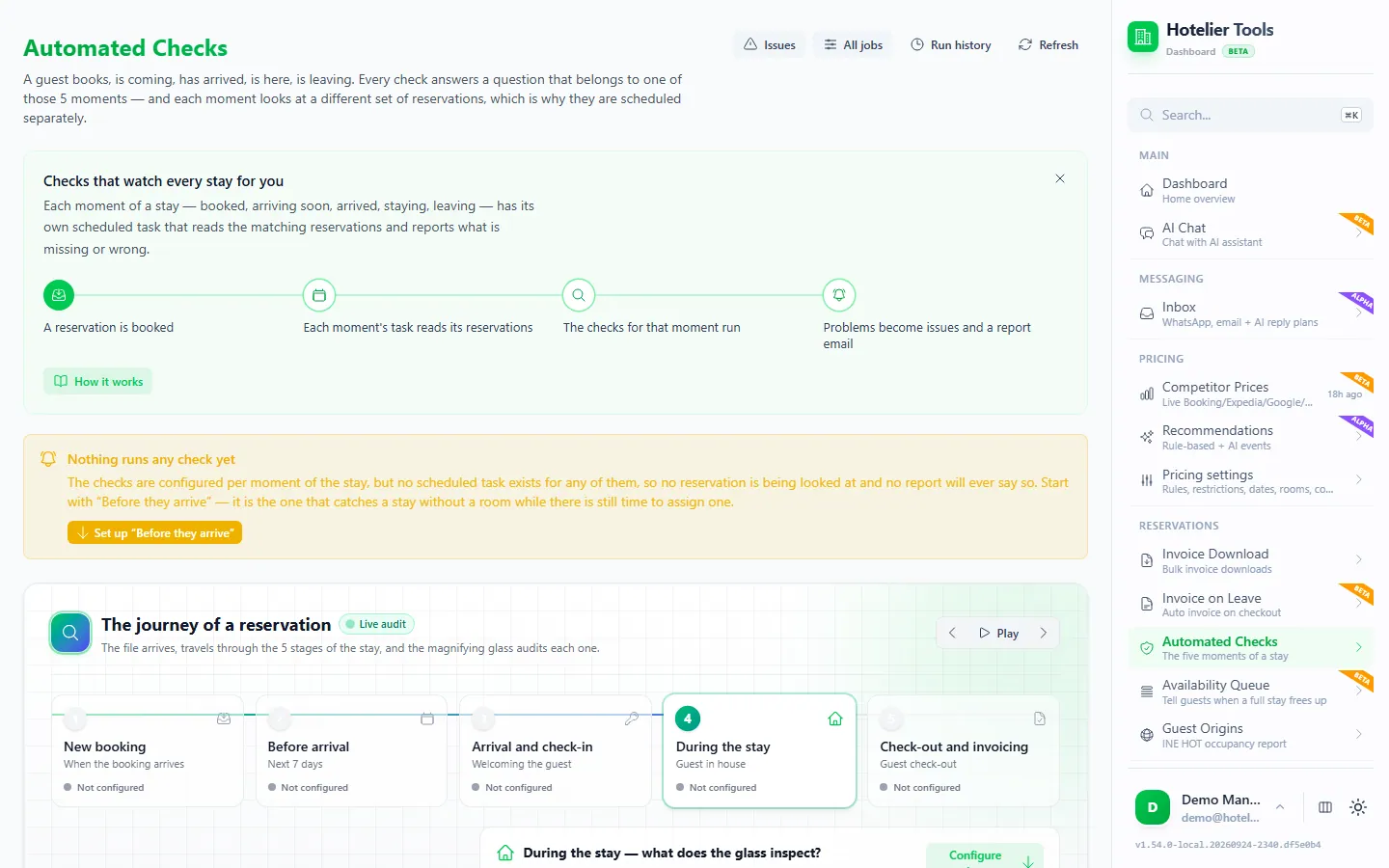
- Open Automated Checks (
/automated-checks). If nothing runs yet, the page suggests starting with Before they arrive: it catches a stay without a room while there is still time to assign one. - Open a moment, switch its checks on or off, and press Save and activate task. That creates the scheduled task with the recommended schedule, for example every night at 23:30 for "After a booking is made".
- Problems appear on Issues (
/automated-checks/issues), grouped by reservation. Filter by open issues, check type or stay dates. - Fix the reservation in Little Hotelier, then press Verify. The checks run again on that one reservation and the issue closes once it's fixed.
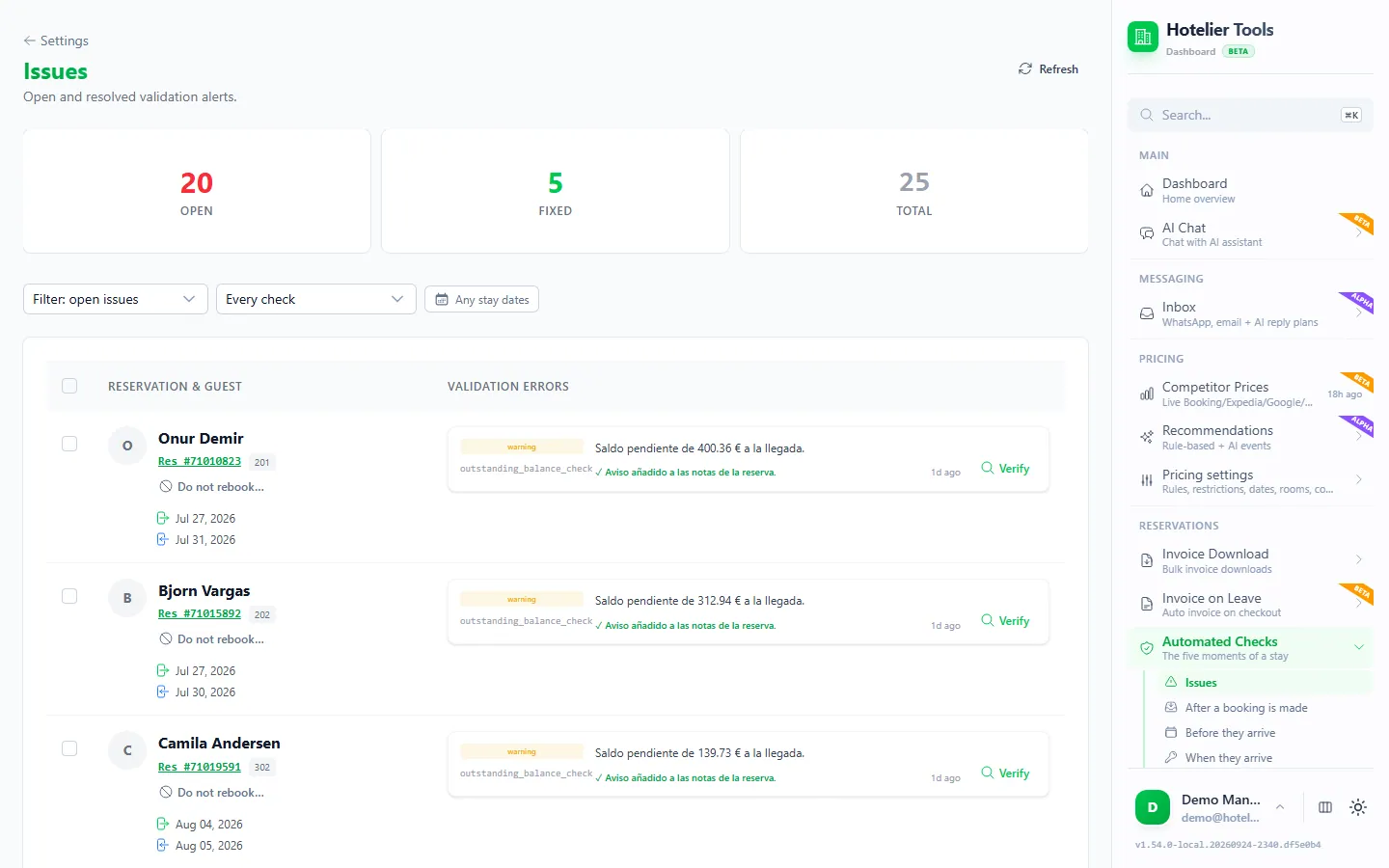
Try it in the live demo
Open the same screen in the Hotelier Tools demo, filled with invented data. No sign-up, nothing to install.
What the email report looks like
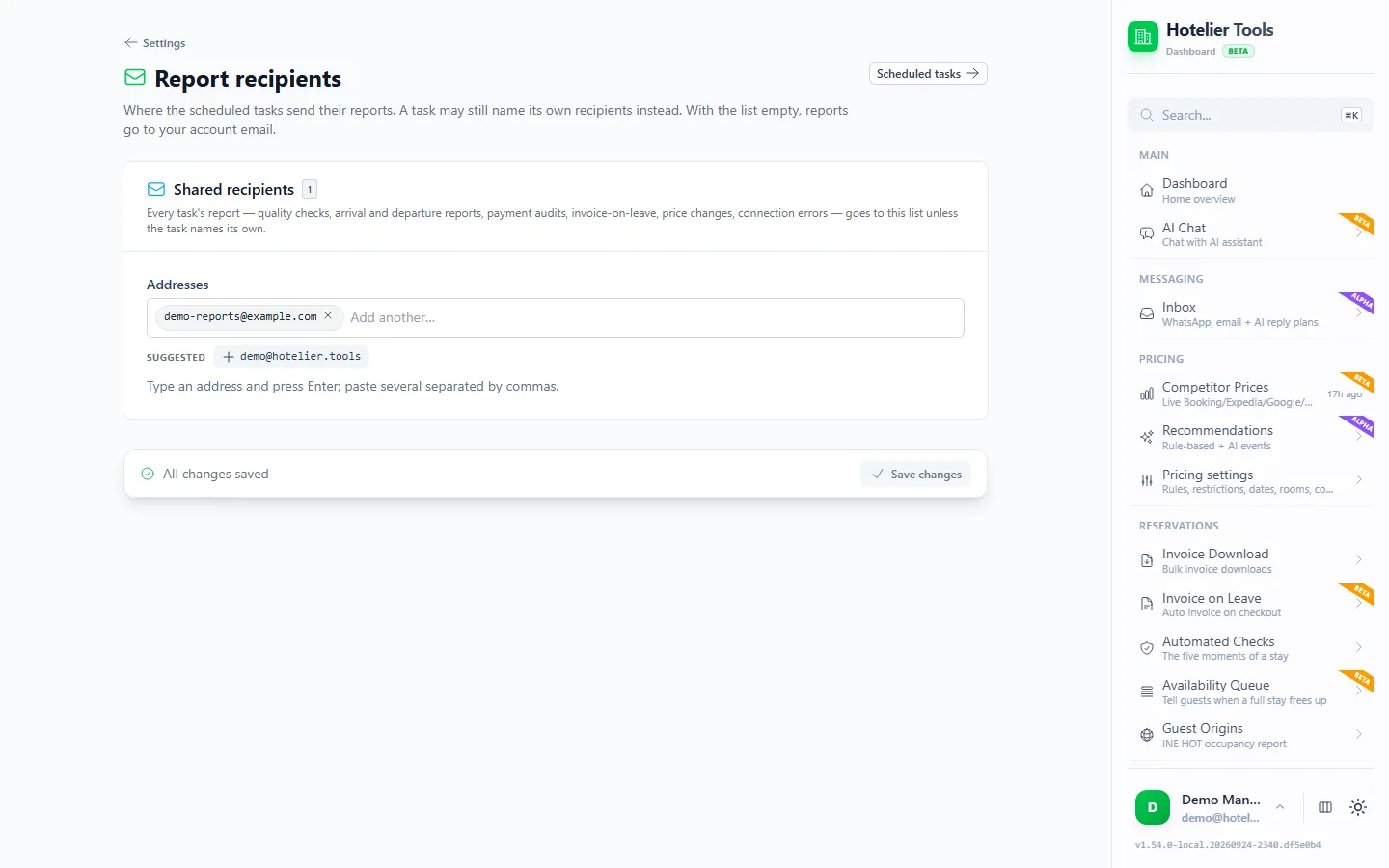
Every run sends one report email per job, in the language you set for that job: a clear summary of what the run found, easy to read on a phone. Each problem is also on Issues, so the email is your prompt and the dashboard is where you work. Shared recipients, such as the owner and the front desk, are set in Settings > Notifications (/settings/notifications).
Limits, and what the checks never change
- They only alert. No check edits, cancels or charges a booking. The exception is the optional automatic check-out, which writes to Little Hotelier and is off by default.
- At most once an hour per job. Each run signs in to Little Hotelier, so the minimum interval is 60 minutes.
- They pause safely. If your Little Hotelier password expires, scheduled jobs pause themselves instead of retrying, which protects your account from a lockout. The dashboard shows "Automated jobs are paused" until you save the new password on Credentials or press Check now & resume.
- Three checks stay manual. Cards, guest counts and arrival times are not checked automatically, so keep them on your morning list.
Every task is listed under Cron Jobs (/cron) and every run under Run History (/cron-logs). The feature is in beta. More on scheduling on the Automations page, and the full feature on Automated checks.
Summary
- Check eight things before each arrival: room, balance, card, ID, address, guest count, arrival time and your do-not-rebook list.
- In Little Hotelier, the Reservations list filtered by check-in date shows four of them at a glance; ID and address need each reservation opened.
- Hotelier Tools checks room, payment, ID, address and the do-not-rebook list at five moments of the stay, lists problems on Issues and emails a report.
- Start with Before they arrive, then add the other moments.
Frequently asked questions
What should a hotel front desk check every day?
For today's and tomorrow's arrivals: a room assigned, the balance paid, a valid card, an ID document, an address, the right number of guests, an arrival time, and no match with your do-not-rebook list. For today's departures: the balance and everything the invoice needs.
How do I find bookings without a room in Little Hotelier?
Open Front Desk > Reservations, filter by check-in date and look for an empty Room column. The Calendar also shows a counter of unallocated bookings at the top.
How often can the automated checks run?
Each check job has its own schedule. The recommended ones run once a day, and a job can run at most once an hour, because every run signs in to Little Hotelier.
Will Hotelier Tools change or cancel my reservations?
No. The checks only raise alerts. The one exception is the automatic check-out, which writes to Little Hotelier and is off until you switch it on.
Can I print this checklist?
Yes. Copy the table in this guide into a document, or export the filtered arrivals from Front Desk > Reservations as a CSV and print that.
Is Hotelier Tools part of Little Hotelier?
No. It is an independent dashboard, not affiliated with or endorsed by SiteMinder or Little Hotelier. It connects with your hotel's own Little Hotelier login.