On this page
- Where are Booking.com messages, and why aren't they showing?
- How to set up templates, scheduled messages and automatic replies
- Does replying fast matter?
- How to answer Guest Q&A (questions before booking)
- Little Hotelier's own option: Messaging hub
- How to spot fake Booking.com messages
- The faster way: Booking.com, WhatsApp and email in one inbox
- Summary
You don't need the extranet open all day. The Pulse app brings Booking.com messages to your phone with notifications, and message templates, scheduled messages and automatic replies handle the routine questions for you. To see Booking.com next to WhatsApp and email, use Little Hotelier's Messaging hub (a paid add-on) or the Hotelier Tools inbox, which also drafts replies for a person to approve.
Booking.com features below were checked against its Partner Help as of October 2026.
Where are Booking.com messages, and why aren't they showing?
You can read and answer them in three places (Partner Help: Contacting guests):
- Extranet: Inbox > Reservation messages, or open a reservation and scroll to Conversation with guest.
- Pulse app: tap Bookings, choose the guest, and write under Messages.
- Your connectivity provider, if it manages guest messaging for you.
Messages missing or not loading? Check these three things:
- Who manages messaging. In the Extranet, open the Connection management page. Messaging functions marked in green are handled on your provider's platform (for example Little Hotelier's Messaging hub), not in the Extranet.
- Your user's rights. Some features need specific permissions: templates need the right to manage guest message templates, and phone numbers need the rights to manage reservations and view guest contact details.
- Notifications. Under Account > Notification settings, choose how you hear about new messages, for example by email.
How to set up templates, scheduled messages and automatic replies
All three live under Property > Messaging preferences, in the Extranet or under More in Pulse (Partner Help: Templates and automatic replies).
Message templates
- Open the Message templates tab and click Create new template.
- Write the message. Booking.com's pre-filled info blocks insert the guest name, check-in time, property name and other booking details.
- Add a language and images if you need them, then click Continue.
- Give it a Template name and a Template topic, and click Save template.
Use the same template name for every language version. Booking.com then sends the guest's language and falls back to your default. PDFs and QR codes can't be attached, and any link (your online check-in, for instance) must be approved in Security settings first.
A pre-arrival template you can adapt (swap the brackets for Booking.com's info blocks):
Hi [guest name], we're looking forward to welcoming you to [property name].

Check-in is from [check-in time]. If you'll arrive after 22:00, just reply with your arrival time.
Parking: [your parking info]. Breakfast: [times and price].

We will never ask for your card details by WhatsApp or text message.
See you soon!
Scheduled messages
Open the Template scheduler tab, click Schedule a template, pick when it goes out and which template, then Add to schedule. The stages are: when a guest books, one week before arrival, three days before, one day before, on the arrival day, and one day before departure. Sent templates show up in your inbox.
Automatic replies
On the Automatic replies tab, open the settings for a topic, tick it, choose your response, attach a template with Select template, and Save. Requests within your policy get an automatic acceptance; for requests outside it, you pair the reply with a template. The guest receives it by email and in the chat.
Help me reply and translation
The Extranet's chat has a Help me reply button that suggests a template or a free-text reply. You review, edit and send it yourself. Messages can also be translated in the Extranet and Pulse (English, German, French, Spanish, Dutch, Polish, Russian, Arabic and Portuguese).
Does replying fast matter?
Yes. Little Hotelier's help centre notes that Booking.com tracks an internal reply score measuring how quickly you respond. When a message needs no answer ("Thanks, see you Friday!"), mark it No reply needed: it closes the 24-hour response window so that thread doesn't count against you (Messaging hub FAQ).
How to answer Guest Q&A (questions before booking)
Guest Q&A lets people ask you questions before they book. Your answers are published on your property page after moderation. Other guests can upvote them, so the most useful appear first (Partner Help: Guest Q&A).
You can remove outdated answers, or reply privately when a question is personal. To opt out, go to the Extranet's Inbox tab, Questions for your property, Guest Q&A preferences. Questions that keep coming back (parking, late check-in, pets) belong in your property description too.
Little Hotelier's own option: Messaging hub
If you use Little Hotelier's Guest Engagement add-on (listed for the Pro plan on the pricing page as of October 2026), its Messaging hub can schedule messages and chat with Booking.com guests, next to WhatsApp, Airbnb, SMS and email. Booking.com messaging costs nothing extra there (Messaging hub FAQ).
- Make sure Booking.com is connected under Channels.
- Go to Guest Engagement > Communication > Settings, find Booking.com and click Configure.
- Click Connect and grant guest messaging permission to SiteMinder in Booking.com's widget.
- Refresh the page and start replying. A No reply needed icon closes threads that need no answer.
The same inbox is in the Little Hotelier mobile app, with push notifications for new messages (mobile app). Add Little Hotelier's domains to Booking.com's allowlist, or its messages won't reach Booking.com guests (how to).
How to spot fake Booking.com messages
Scammers imitate Booking.com to steal your extranet login, then message your guests with fake payment links. Booking.com's guidance (Partner Help: Phishing and email spoofing):
- Check the sender. Booking.com emails always come from an address ending in @booking.com, whatever the subdomain. An address like support@booking-103266.com is fake.
- Check links before you click. Hover over them, or press and hold on a phone. If the address doesn't end in .booking.com, don't open it.
- Watch the tone. Urgent threats (your account will be suspended), spelling mistakes and mixed languages are warning signs. Booking.com "will never make urgent requests without sending prior communication": call your account manager or Customer Service first.
- If you clicked: reset your email password first, then your Booking.com password, scan your device, and report it within 24 hours.
Protect your guests as well:
- Turn on Messaging security settings (Property > Messaging preferences > Security settings, with two-factor authentication). List the email addresses and links allowed to reach guests: emails from other addresses don't arrive, and other links are removed (Messaging security). If Booking.com detects suspicious activity on your account, it disables links in your messages.
- Know where phone numbers are. Since 28 September 2026, Booking.com no longer sends guest phone numbers to channel managers (Booking.com for developers). Use Show phone number in the Extranet or Pulse.
- Tell guests how you'll ask for money, like the last line of the template above.
The faster way: Booking.com, WhatsApp and email in one inbox
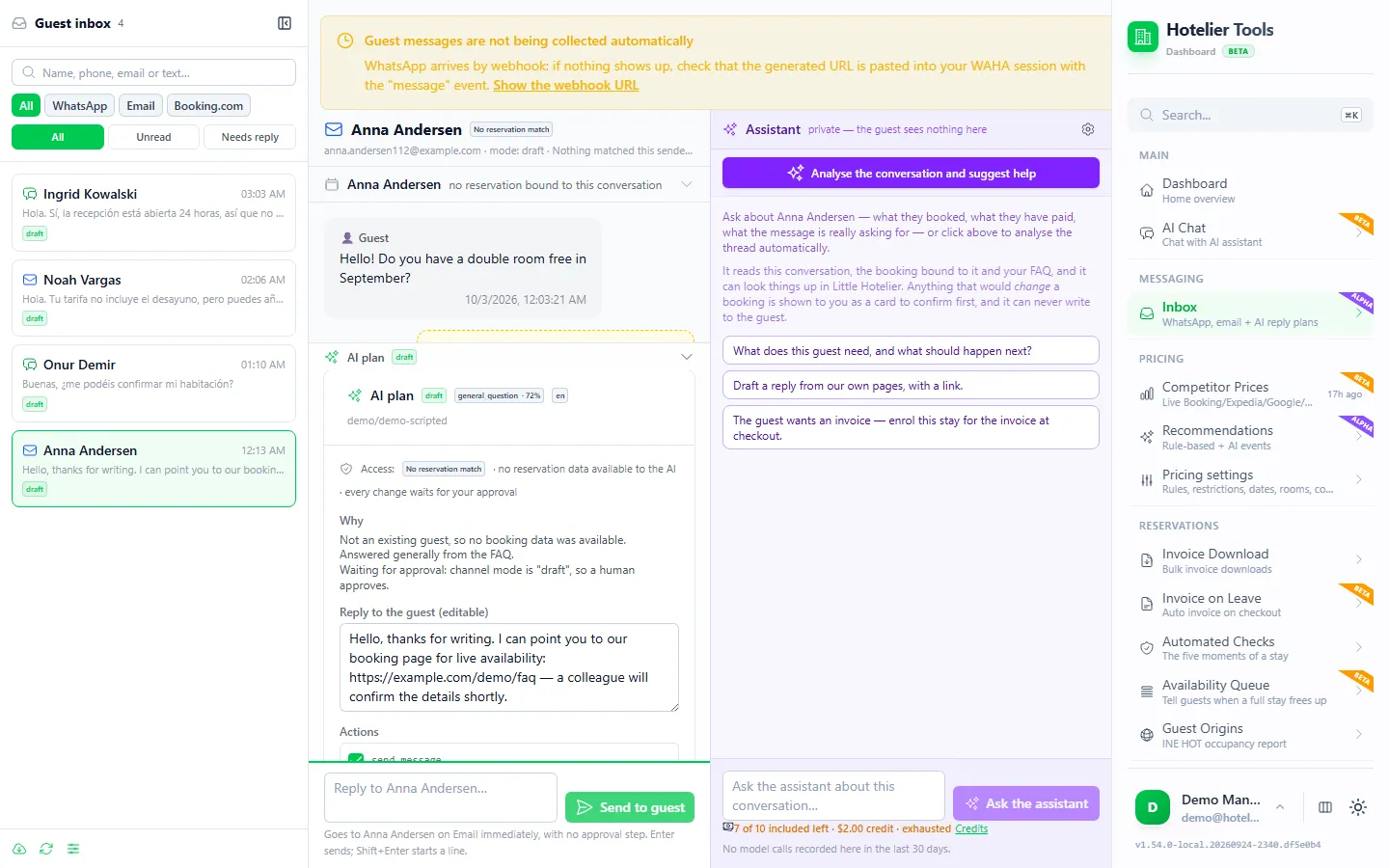
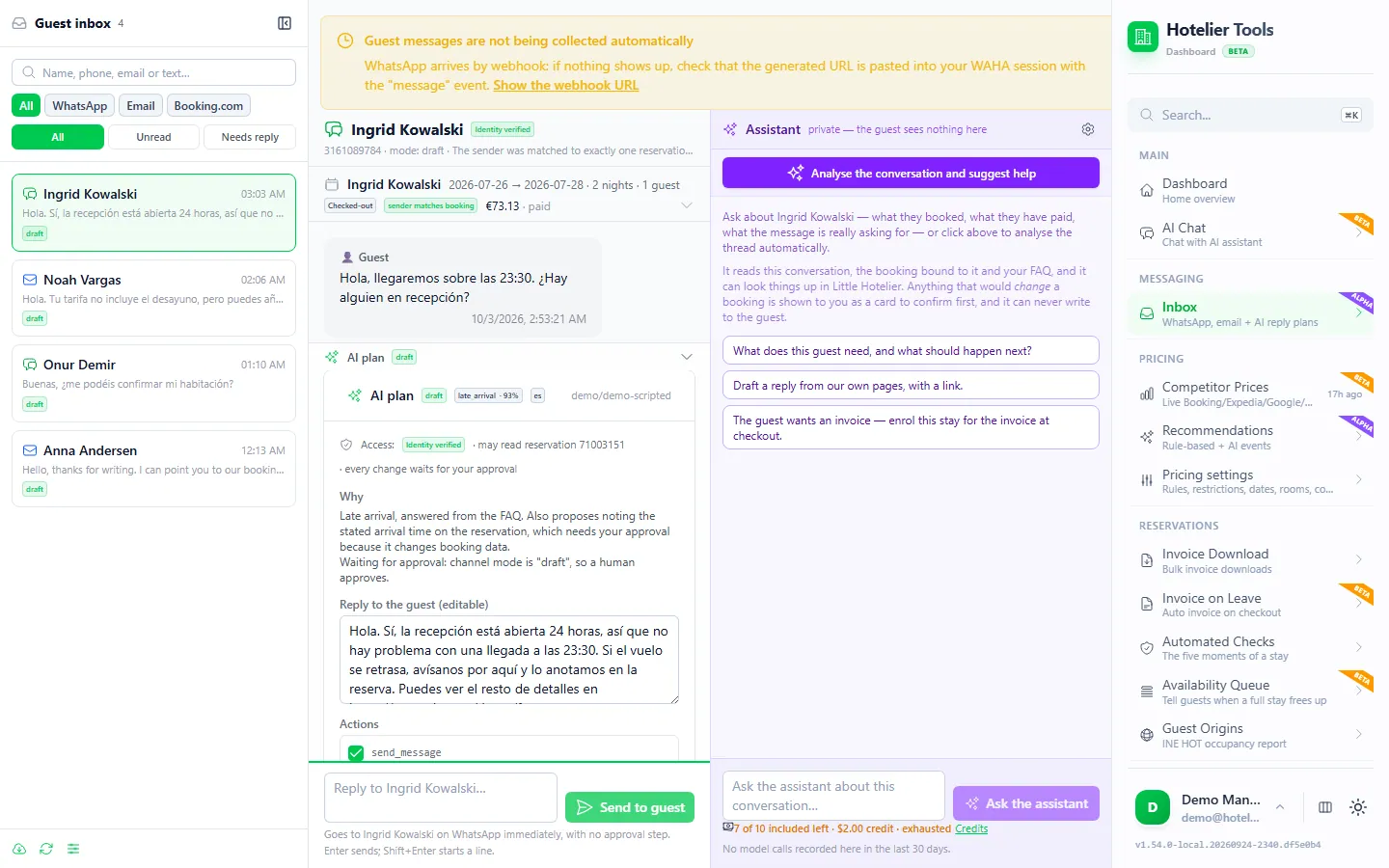
The Hotelier Tools Inbox (/messaging, alpha) puts Booking.com messages and Guest Q&A next to your WhatsApp and email, with the reservation beside each conversation and a reply drafted by AI for you to check.
- Connect Booking.com once in Credentials > Booking.com extranet (
/credentials/booking-extranet) with your partner username, password and second factor (Pulse, SMS or a call). The session is stored encrypted for your property. Booking.com may ask you to verify again from time to time; the wizard handles it. - Optionally connect your mailbox (Google, Microsoft or any IMAP/SMTP account) and WhatsApp.
- Open Inbox and filter by Booking.com. A Booking.com thread is linked to its reservation automatically.
- Read the AI's draft and plan, edit it, or ask the private assistant on the right to look something up in Little Hotelier.
Two honest limits:
- For Booking.com, the AI never sends anything on its own. And sending your reply back to Booking.com from the inbox isn't something we promise yet: copy the approved draft into the Extranet or Pulse.
- It uses your own extranet session. Hotelier Tools signs in as you, because Booking.com's messaging API is only open to connectivity partners. The dashboard itself notes that Booking.com's partner terms restrict automated extranet access, and that the Connectivity API remains the supported route where you have it.
Booking.com's two fixed invoice-request messages are recognized without any AI: the inbox offers to enroll the stay for its invoice at checkout (see sending the invoice automatically at checkout).
Choose how much the AI may do
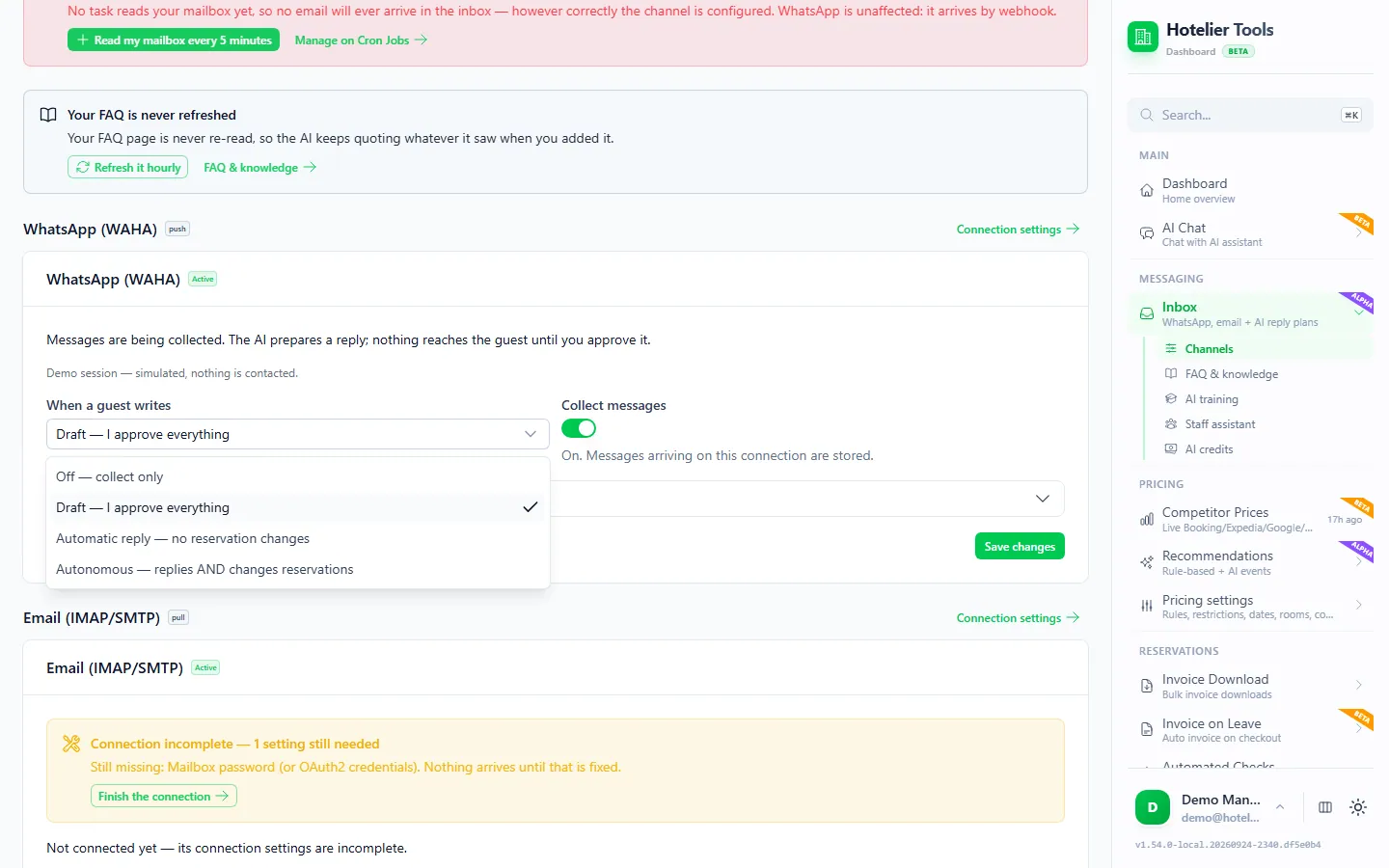
On Channels (/messaging/channels), each connected account has a reply mode:
| Mode | What happens |
|---|---|
| Off | Messages are collected and shown. Nothing is analyzed or sent. |
| Draft (default) | The AI prepares a reply and a plan. Nothing happens until you approve it. |
| Automatic reply | The AI sends its reply after a delay. It can never change a reservation. |
| Autonomous | The AI replies and can also add a note or set the arrival time on a verified booking, without approval. Review it several times a day. |
Whatever you choose, Booking.com conversations stay person-sent. The guest-facing AI has no tools: it returns a plan from a closed list (send a message, flag for staff, add a reservation note, set the arrival time) and can never cancel, change dates or touch payments. It only sees a booking when the sender is verified, and a Booking.com thread counts as verified.
Teach it your answers: FAQ & knowledge
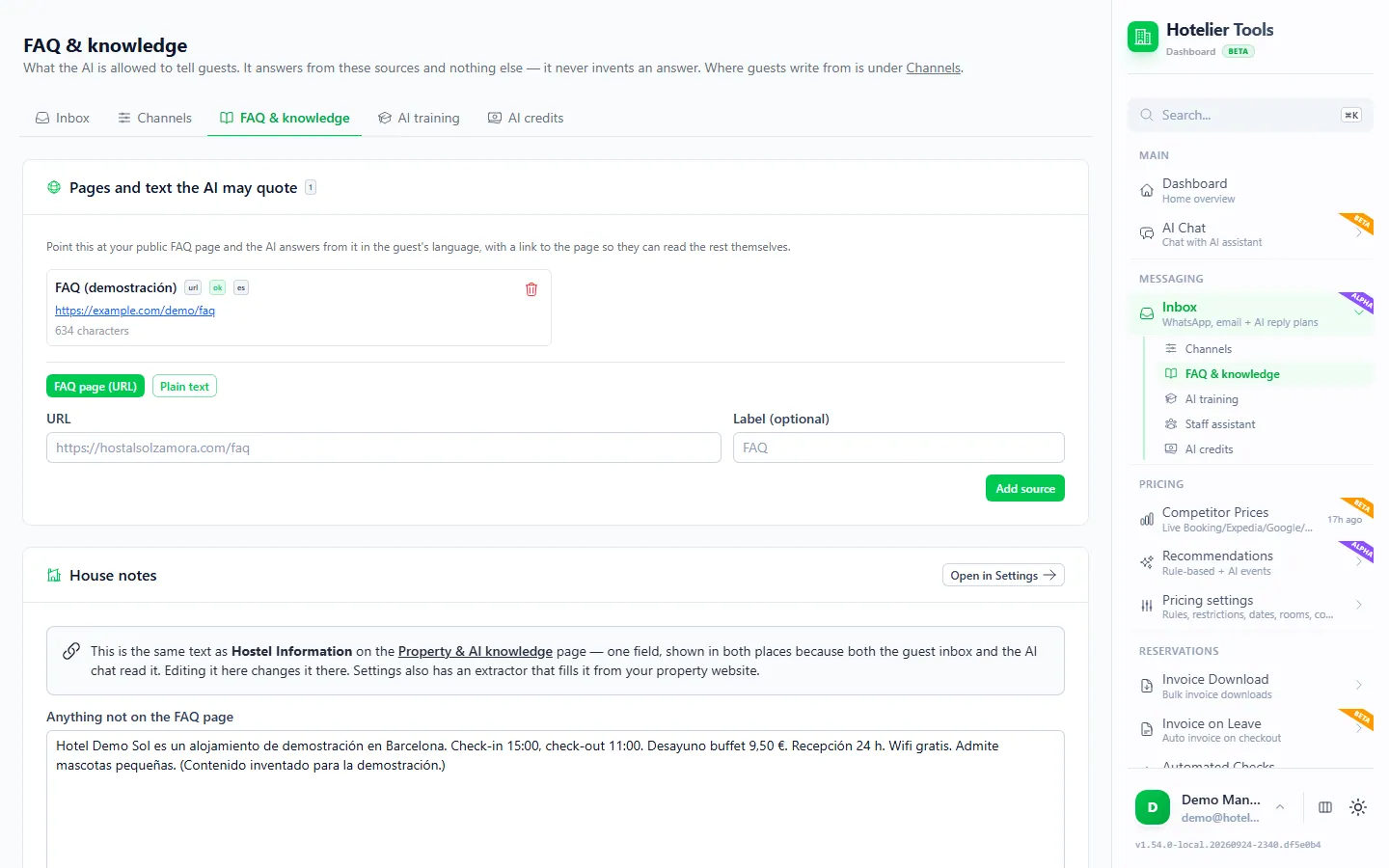
The AI answers guests only from what you give it, plus your property card. Open FAQ & knowledge (/messaging/faq):
- Under Pages and text the AI may quote, choose FAQ page (URL) or Plain text, and click Add source. A scheduled task can re-read the page every hour.
- Fill in House notes with anything not on that page: wifi, check-in and check-out times, parking, local tips. Click Save notes.
- On Settings > Property & AI knowledge (
/settings/property), press Read from Little Hotelier to import your address, policies, room types and extras, then Save.
A service you haven't listed is answered as "to confirm", never "yes". Each message the AI reads and drafts uses AI credits, shown on AI credits (/messaging/credits).
Try it in the live demo
Open the same screen in the Hotelier Tools demo, filled with invented data. No sign-up, nothing to install.
Everything the inbox does is on the Guest inbox page. The dashboard is free for every hotel until billing starts on 10 January 2027.
Summary
- Answer on the go in Pulse, and let templates, scheduled messages and automatic replies cover the routine questions.
- Mark threads that need no answer as No reply needed, and keep Guest Q&A answers short and public-friendly.
- Treat any "Booking.com" message that isn't from @booking.com, or links outside .booking.com, as a scam. Turn on Messaging security settings.
- For one inbox with WhatsApp and email, use Little Hotelier's Messaging hub or the Hotelier Tools inbox, where AI drafts and a person sends.
Frequently asked questions
Why are my Booking.com messages not showing in the extranet?
Your channel manager may be handling guest messaging. In the Extranet, open Connection management: functions marked in green are managed on your provider's platform, such as Little Hotelier's Messaging hub. Also check that your extranet user has the right permissions.
Can I schedule messages to Booking.com guests?
Yes. In the Extranet or Pulse, go to Property > Messaging preferences > Template scheduler and attach a template to a stage: at booking, one week, three days or one day before arrival, on the arrival day, or one day before departure.
How do I know a message really comes from Booking.com?
Booking.com emails always come from an address ending in @booking.com, and its links go to addresses ending in .booking.com. Be wary of urgent requests you weren't told about: Booking.com says it never makes them without prior communication.
Why don't new Booking.com bookings show a phone number in Little Hotelier?
Since 28 September 2026, Booking.com no longer includes guest phone numbers in the reservations it sends to channel managers. You can still see the number in the Extranet or Pulse with Show phone number.
Can AI reply to Booking.com guests automatically in Hotelier Tools?
No. For Booking.com, the AI only prepares a draft and a person decides. Automatic AI sending is never allowed on Booking.com conversations, whatever reply mode you choose.
Is Hotelier Tools part of Booking.com or Little Hotelier?
No. Hotelier Tools is independent and not affiliated with or endorsed by Booking.com, SiteMinder or Little Hotelier. It connects with your hotel's own Little Hotelier login and your own Booking.com extranet login.