On this page
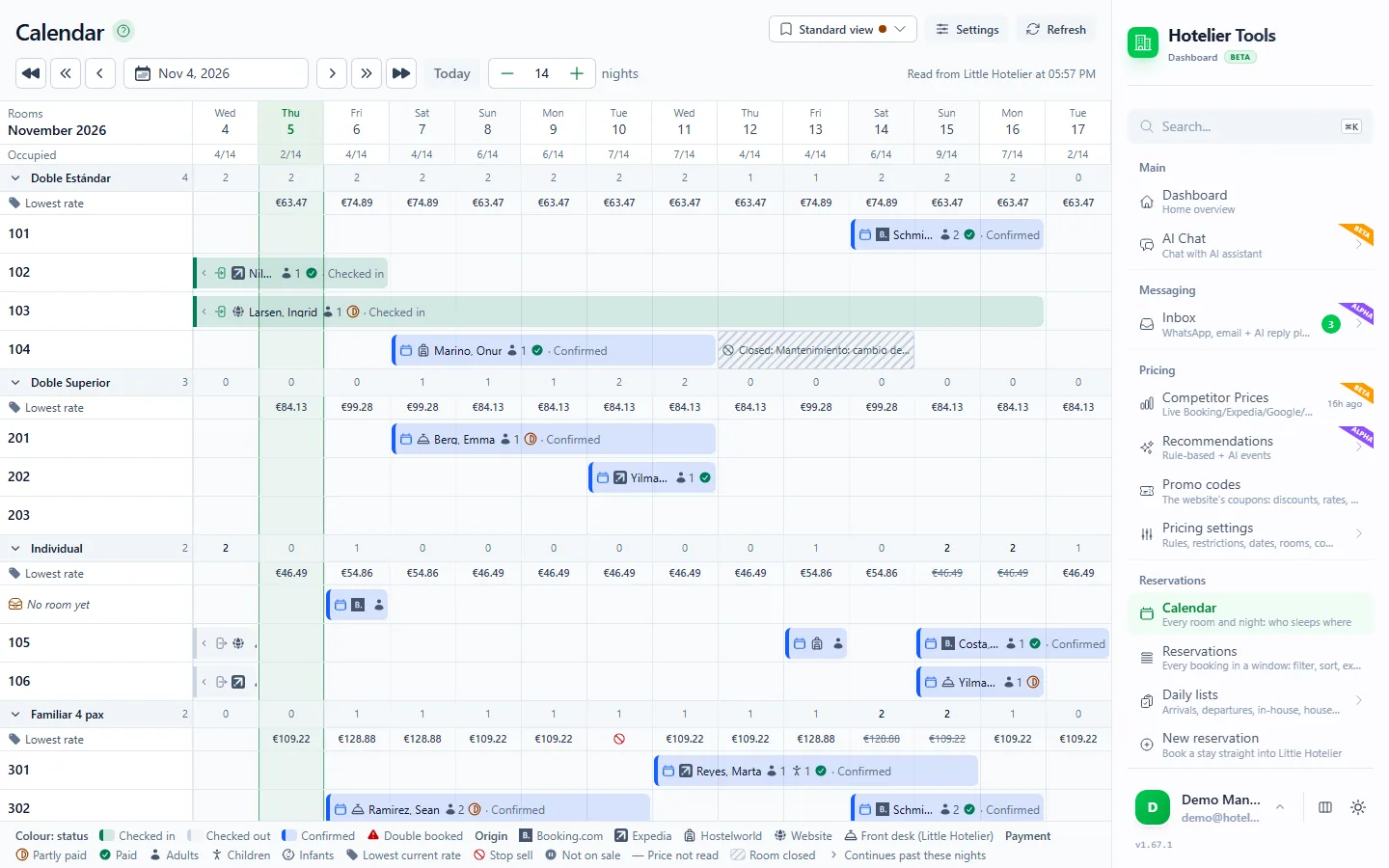
Little Hotelier's calendar shows 14 or 28 days of bookings, and you create a booking from it with +Reservation. It doesn't show prices or let you shape the chart. Hotelier Tools adds a second calendar, read from Little Hotelier, with 1 to 92 nights, the lowest rate per room type on every night, channel and payment icons, and saved views. It also has a New reservation page that prices the stay, checks availability and duplicates, and then books it into Little Hotelier.
Little Hotelier features below were checked against its help centres as of November 2026.
How does the Little Hotelier calendar work?
On the newer platform (Getting started with Calendar):
- View length: a drop-down switches between 14 or 28 days. View today jumps back, and a date picker jumps ahead.
- Moving: in the 14-day view,
<moves one day,<<seven and<<<fourteen. In the 28-day view,<<<moves 28. - Colors: orange or yellow confirmed, green checked in, gray checked out, light blue unallocated, dark red room closure, and a faded bar for an incomplete payment. A bar on the left edge shows paid (green) or unpaid (red).
- Drag and drop: drag a booking to another room, room type or dates, or drag its end to extend it. Channel bookings can't be extended this way.
- Unallocated row: confirmed bookings with no physical room. Drag them onto a free room.
The classic version works the same way (Overview of the front desk calendar).
How to create a reservation in Little Hotelier
Manual bookings are for walk-ins, phone and email requests and travel agents (Create a manual reservation):
- Refresh the page and click View Today, so you see current availability.
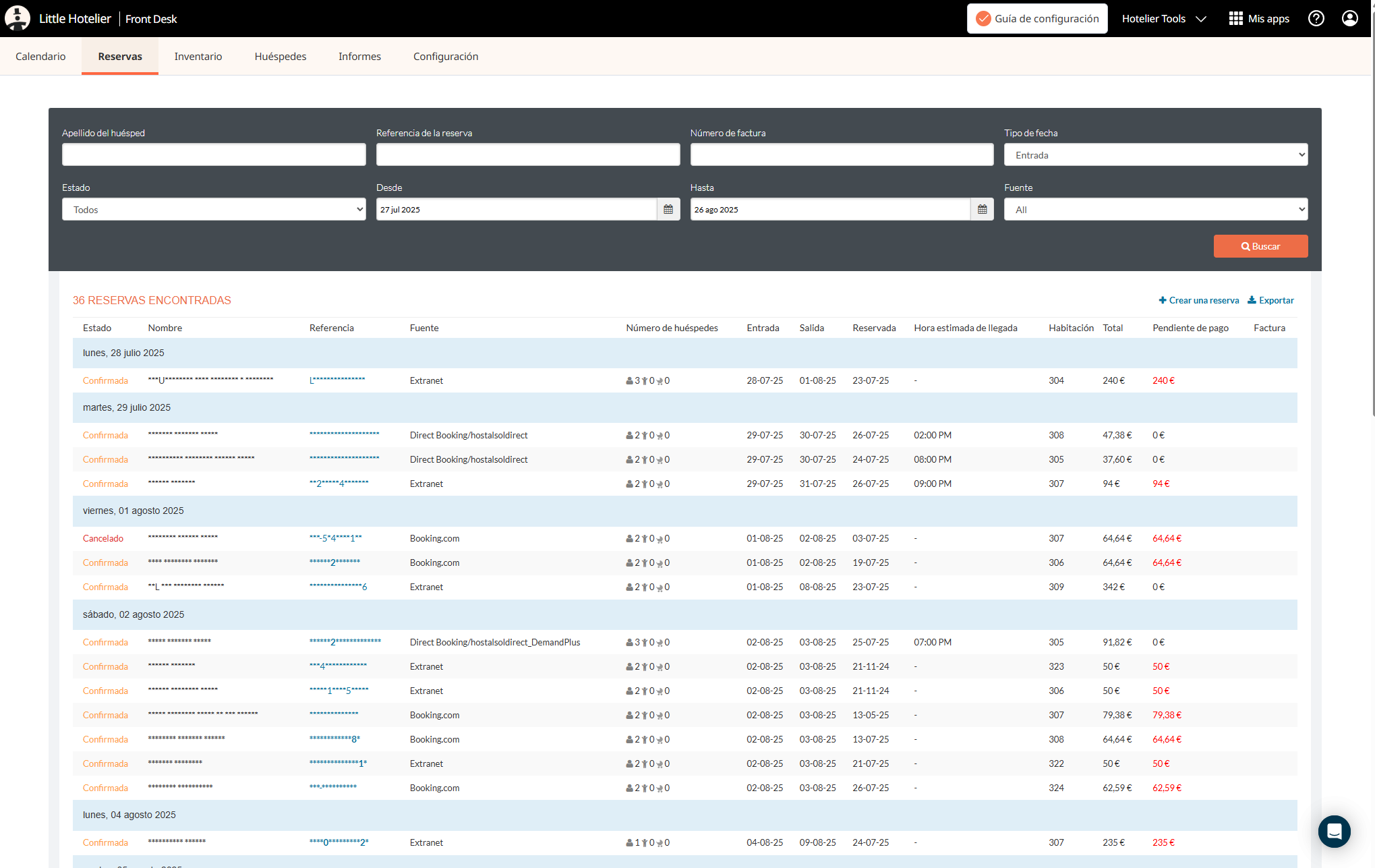
- On Calendar, click +Reservation (or drag across a room's nights). On Reservations, click Create reservation.
- Pick the check-in and check-out dates, a Room type and a Room rate. For a special price, leave the rate empty and type the total in the Room field.
- Choose a Room number. Left empty, the booking waits in the Unallocated row.
- Enter Adults, Children and Infants, and a Discount if any.
- Fill in the Primary contact and any Guest comments, then click Save.
Three things people miss:
- No confirmation email is sent for a manual booking. Press Email after saving.
- More rooms: +Add another room puts them on one invoice. They share the same dates.
- Payments: Record payment for cash or an external terminal, or the Payments tab to charge a card.
Classic accounts follow Create a reservation.
Why use a second calendar?
Little Hotelier's calendar is where you move bookings. A second one helps when you mostly look: prices next to the rooms when a guest calls, more than 28 days at once, your own layout, and a chart you can read on a phone.
If you only need prices inside Little Hotelier, the free Prices Display userscript adds them to its calendar.
The faster way: the reservation desk in Hotelier Tools
The reservation desk is three pages under Reservations: Calendar (/reservations/calendar), Reservations (/reservations) and the reservation page (/reservations/:id). Each reads Little Hotelier once and keeps it for a couple of minutes, so moving around is fast. Refresh reads again.
The calendar (tape chart)
- Open Reservations > Calendar. It starts one night before today, 14 nights wide, so today's departures are on screen.
- Move by a night, a week or the whole window with the arrows, or press Today. Type any number of nights from 1 to 92 next to the date.
- Click a bar to open the booking in a drawer beside the chart. The chart stays where it was.
Each room type is a band with its rooms taken per night. Bookings with no room sit in a No room yet lane, closures are hatched, and a room sold twice for the same night is ringed in red. Rows above the chart can count rooms Occupied, Arrivals and Departures per night.
Settings that make it yours
Open Settings on the calendar:
| Setting | Options |
|---|---|
| Nights shown | 7, 14, 30, 60 or 90, or Any number of nights (1 to 92) |
| Minimum night width | Narrow, Medium, Wide, or any width in pixels. Nights widen to fill the screen when they all fit |
| Room type after the number | Full name, Abbreviated or Hidden |
| Room order | As in Little Hotelier, By room number, By room type, then number, or My own order (drag the rooms) |
| What a booking shows | Guest name, reference, channel, guests, balance due, nights |
| Colour bookings by | Status, Channel or Payment |
| Icons in a booking | Where it came from (Booking.com, Expedia, Airbnb, Hostelworld, your website, the front desk), Paid or not, and Guests as one icon or adults, children and infants apart |
| Show prices | Each room type's lowest current rate per night |
Show prices reads Little Hotelier's inventory, one read for every two weeks shown, and takes the lowest rate among all rate plans, non-refundable ones included. A sold-out night shows the price struck through and a stop sell shows a closed mark. It is offered to people who may edit reservations, and it is off until you turn it on.
When the chart looks right, open Saved views and choose Save as new view…. Name it ("Front desk"), Share with the team or Open by default. A link keeps the settings too: /reservations/calendar?origin=1&paid=1&guests=split&prices=1&color=payment.
On a phone
On a phone the calendar opens as a List of days: each day's arrivals, departures and closed rooms, with each room type's lowest rate. The Layout switch at the top changes to Full calendar, the whole chart scrolling sideways, and your choice is remembered in that browser. Steps, settings and the legend move into the More menu.
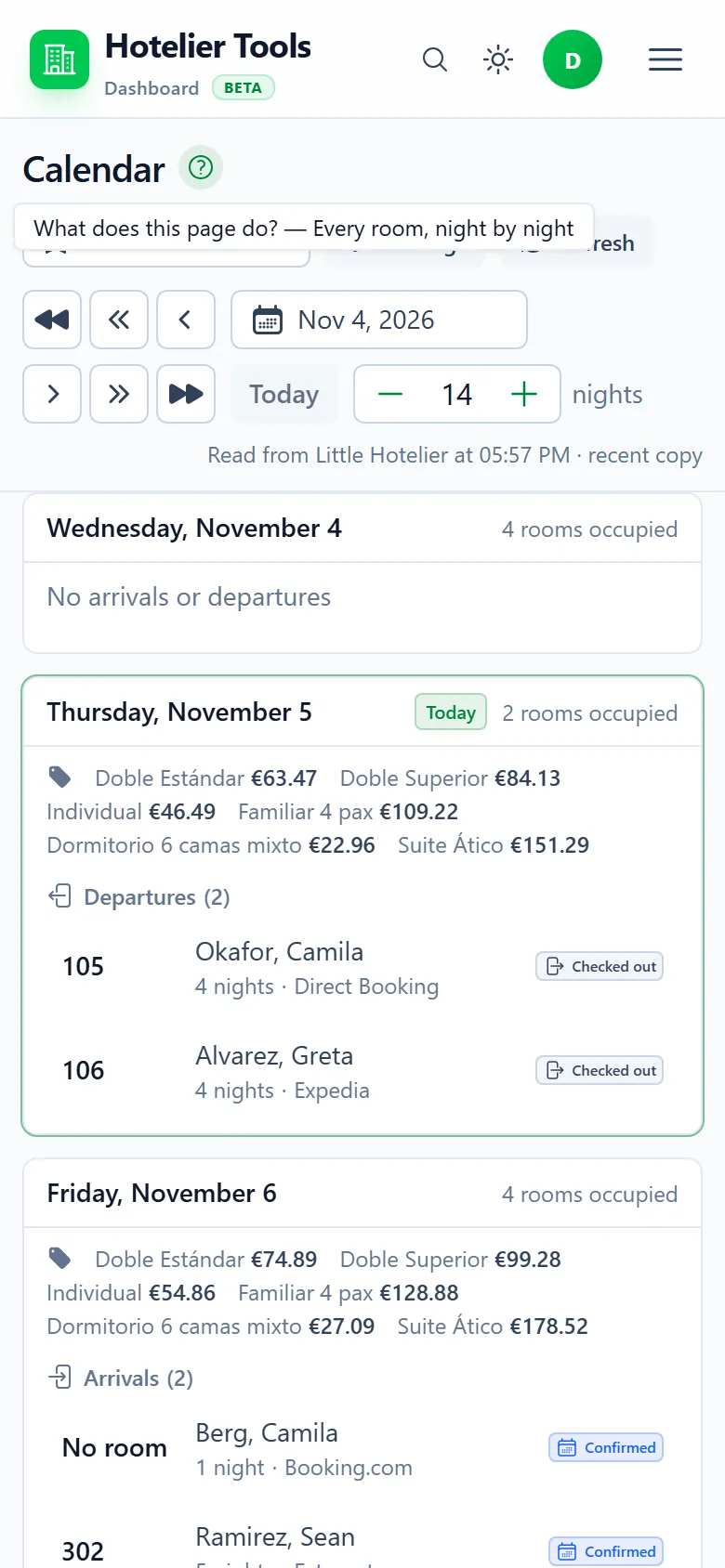
The reservations table
Reservations (/reservations) lists every booking in a window: Today, Next 7 nights, Next 30 nights, This month or Choose dates, by Stay, Arrival, Departure or Booking date. Filter by status, channel and room type, tick Owes money or No room yet, pick from 30 columns, and Export CSV what is on screen.
Everything about one reservation
Open a booking in the drawer, or as its full page:
- Overview: stay, rooms, guests, channel, Total, Received, Outstanding, and Little Hotelier's flags such as Confirmation sent or Card on file.
- Sections: Guests, Rooms and rates (every night's rate), Extras and taxes, Payments, Invoices, Notes, Channel and conversations, Check-in, History and All other fields. Show them on one page or as tabs.
- Actions: Confirm, Check in, Check out (and undo), edit the internal notes, and edit the main guest's billing and address (company, tax ID, document type, address). Each is confirmed first and sent once.
- Payments: refunds, payment links and invoices from the same page.
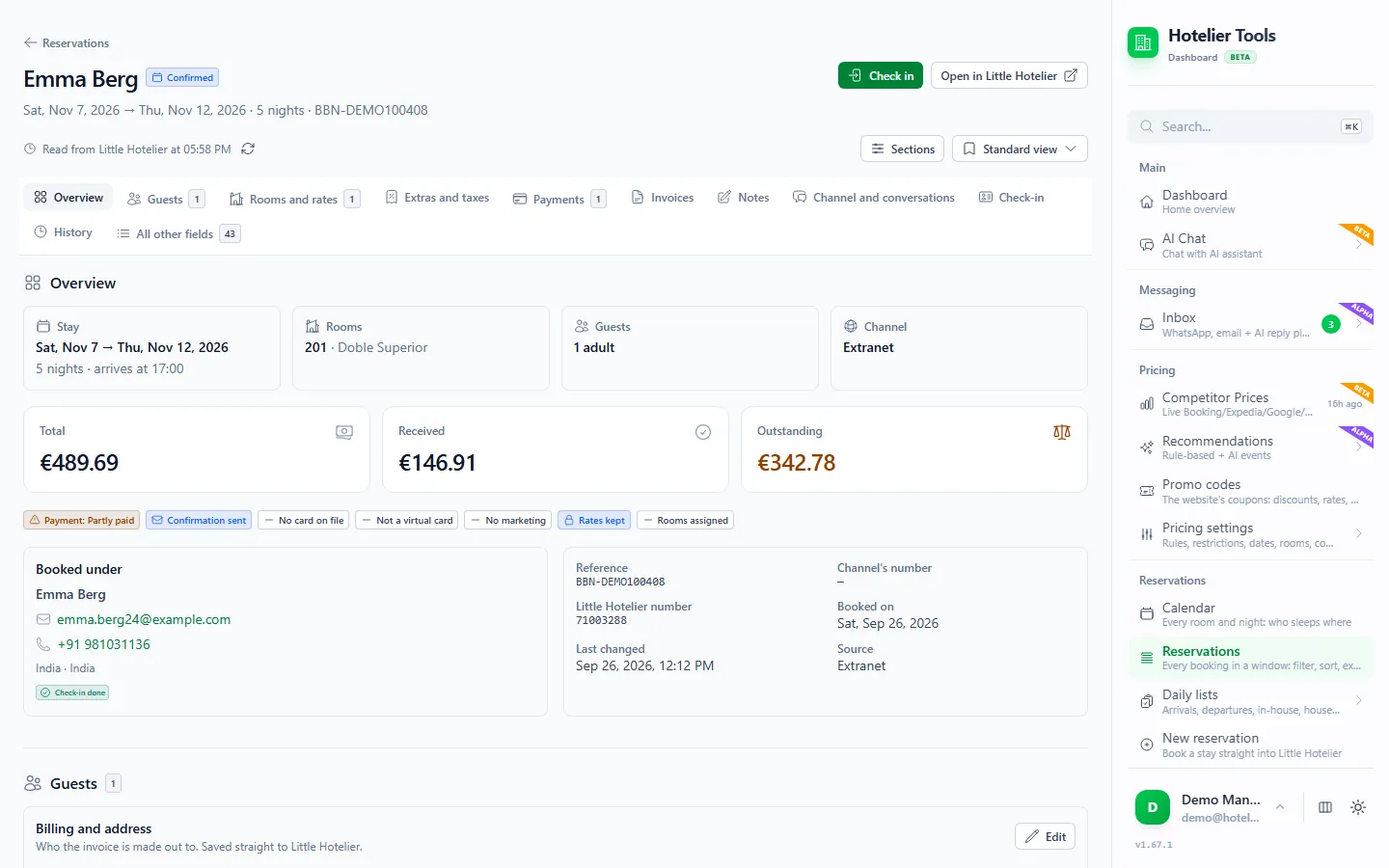
For a booking from your own website, the page can show the Original booking next to Little Hotelier's current one. Press Read the original booking and it lists why they differ: the stay moved to other dates, the room is charged differently, the direct-booking discount was dropped, or the deposit was not recalculated after a move. That explains a balance a guest says they don't owe.
Create a reservation from Hotelier Tools
New reservation (/reservations/new) is the quick path for a phone or walk-in booking:
- Stay. Pick the arrival and departure on a calendar whose days show rooms left, the lowest price, stop sells, closed to arrival and minimum stays.
- Rooms. The rates table opens with every room type and rate plan priced for the stay, night by night. Click a price to choose that room and rate, or Custom rate to type a price per night. Each room's Little Hotelier guest limits cap the Adults, Children and Infants fields, and guests over the included places show the extra-guest charge.
- Compare. Under it, To compare shows the same stay as a Direct booking on your website (with your promo code), on Booking.com with a typical Genius discount, what the price recommendations suggest, and The market these nights from comparable properties.
- Guest and address. Choose the country first. A post code fills in the town and province, and a town suggests its post codes.
- Press Check price and availability. It prices every night, confirms rooms are left and looks for the same guest already booked on those dates. Nothing is written.
- Press Create reservation. It only appears for a check of exactly the form on screen.
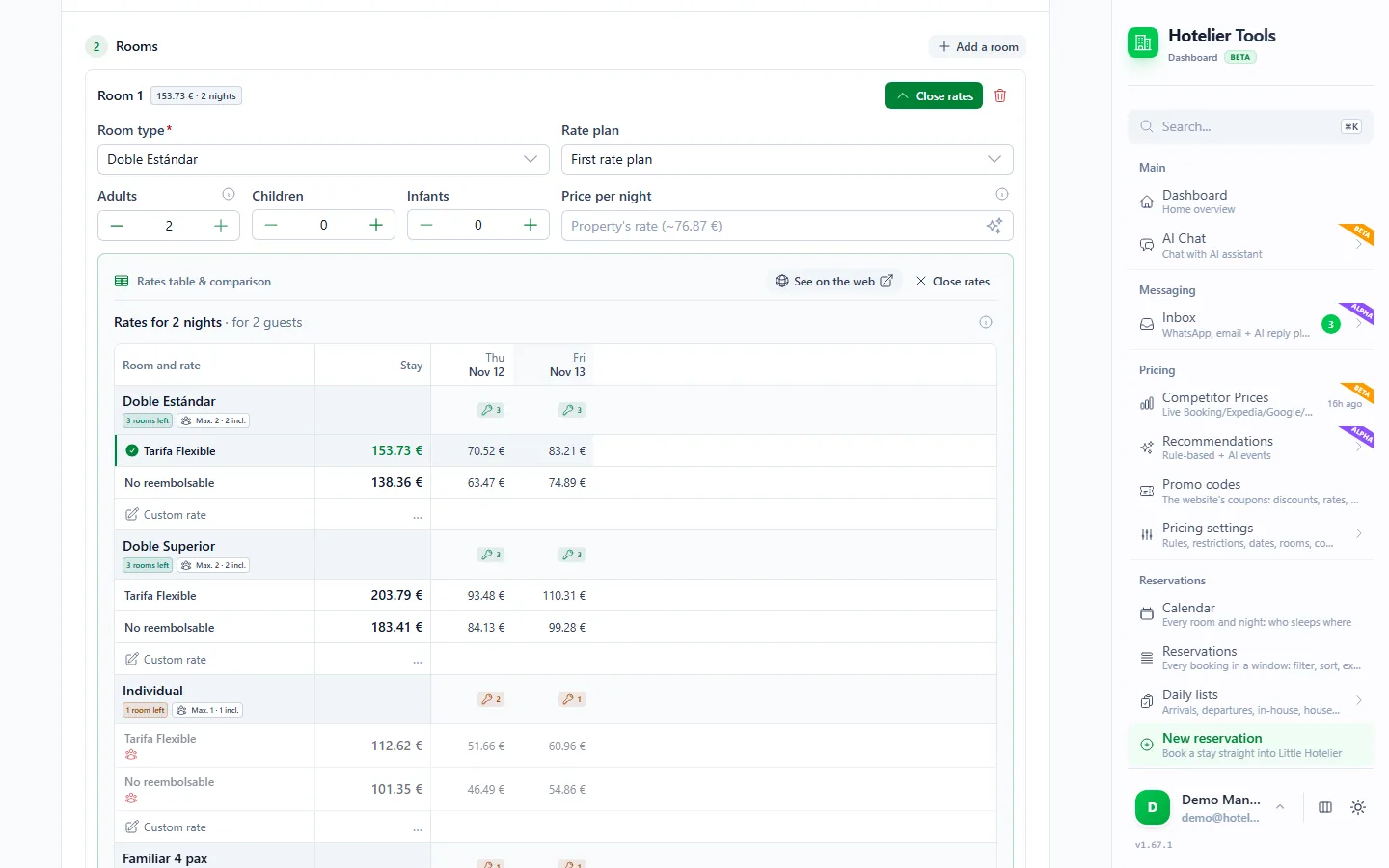
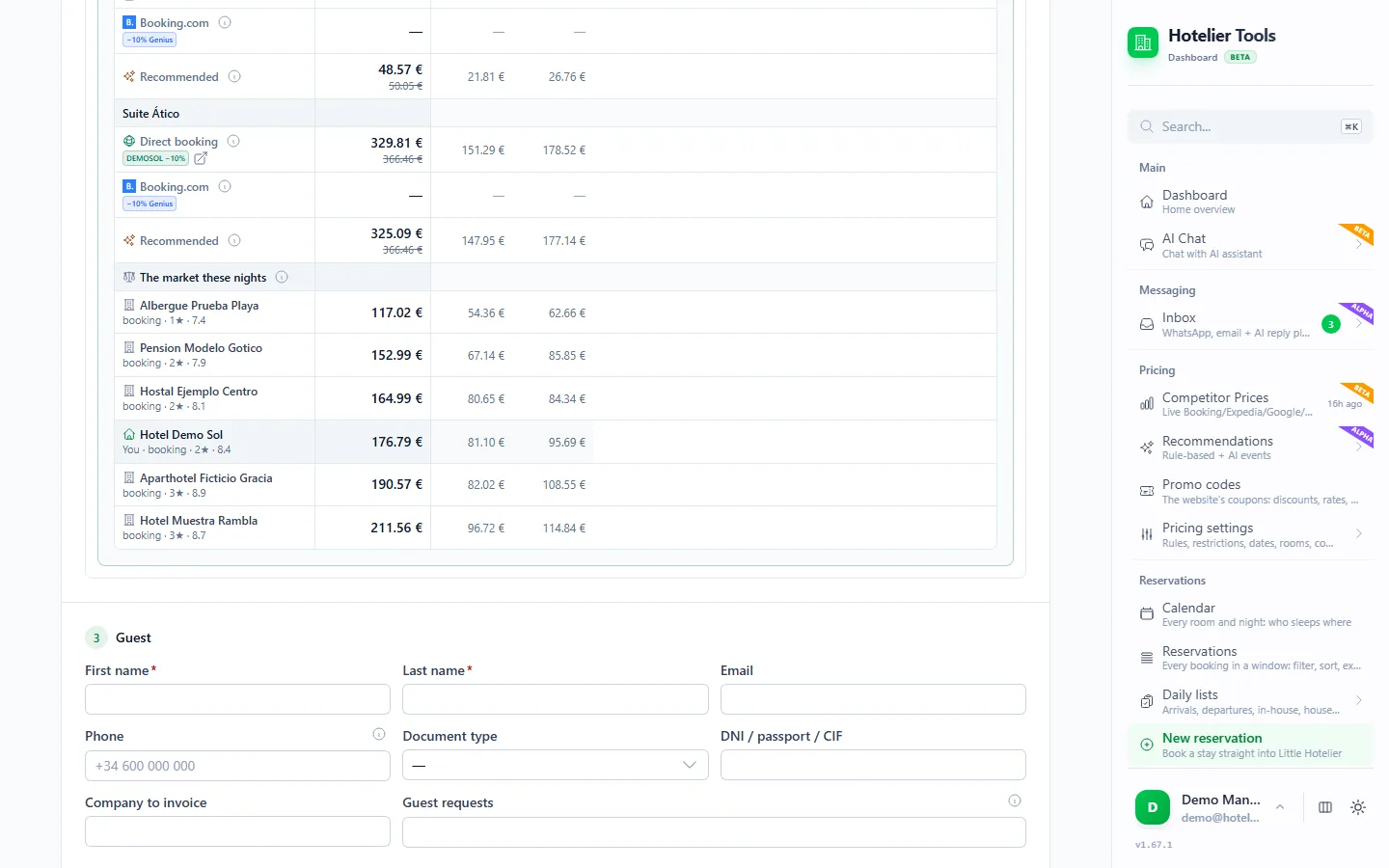
A full night or a likely duplicate is refused with its own checkbox (Book it anyway… or It is a second stay — book it anyway): tick it only when you mean it. The booking is sent once. If the answer is lost, the page never offers Create again until a new check, which finds the booking as a duplicate if it was made.
Once created, the reservation is on the calendar and off sale on every channel.
Try it in the live demo
Open the same screen in the Hotelier Tools demo, filled with invented data. No sign-up, nothing to install.
Honest limits
- The calendar only reads. Moving a stay to another room, changing dates, cancelling or a no-show stay in Little Hotelier. Each booking has an Open in Little Hotelier link. Dragging bars is not offered.
- New reservation is for a plain stay. For a deposit, extras or a specific room, use Little Hotelier's own form, which the page links first. Up to 30 nights and 10 rooms per booking.
- No payment, no email. A reservation created here records no payment and doesn't email the guest.
- Website and Booking.com figures are for comparing. The booking uses the rate you pick.
The dashboard is free for every hotel until billing starts on 10 January 2027. More on the dashboard page.
See also: printable daily lists, promo codes in Little Hotelier, Little Hotelier tips.
Summary
- In Little Hotelier: the calendar shows 14 or 28 days. Create a booking with +Reservation, then press Email to send the confirmation.
- A second calendar in Hotelier Tools shows 1 to 92 nights, the lowest rate per room type, channel and payment icons, and saved views for the team.
- On a phone: a list of days, or the full chart.
- New reservation: pick a priced rate, compare it with your website and Booking.com, check, then create in Little Hotelier.
- Changes to rooms, dates and cancellations stay in Little Hotelier.
Frequently asked questions
How do I create a reservation in Little Hotelier?
On the Calendar click +Reservation, or on Reservations click Create reservation. Pick the dates, room type, rate, room number and guests, fill in the primary contact and click Save. Manual bookings don't send a confirmation email: press Email after saving.
Can I see prices in the Little Hotelier calendar?
Not in Little Hotelier's own calendar, which shows bookings and payment status. Rates live in the inventory grid. The Hotelier Tools calendar can add a row per room type with its lowest current rate for each night, and a free userscript adds prices to Little Hotelier's calendar.
How many days can the Little Hotelier calendar show?
14 or 28 days, chosen from a drop-down. The Hotelier Tools calendar shows any number of nights from 1 to 92, with quick choices of 7, 14, 30, 60 and 90.
Can I move a booking to another room from Hotelier Tools?
No. The Hotelier Tools calendar only reads. Moving a stay, changing its dates or cancelling it is done in Little Hotelier, which you open from the booking's Open in Little Hotelier link.
Does a reservation created in Hotelier Tools email the guest?
No. It creates the booking in Little Hotelier with no payment recorded and no email sent, the same as a manual booking there. Send the confirmation from Little Hotelier and record any payment on the reservation.
Is Hotelier Tools part of Little Hotelier?
No. Hotelier Tools is independent and not affiliated with or endorsed by SiteMinder or Little Hotelier. It reads and creates reservations with your hotel's own Little Hotelier login.