On this page
To add a user to Little Hotelier, sign in on a trusted device, click your property name at the top right, choose Manage users and press Add user. Enter the person's email, name and language, pick the apps they need, choose Admin or General (and tick the permissions), then Save. They get an activation email that is valid for 24 hours. For software, do the same with a separate user: never share the owner's password with a tool.
Little Hotelier steps below were checked against its help centre as of November 2026.
How to add a user in Little Hotelier
Before you start, two requirements (Create and manage users):
- You need the Manage users permission.
- You must be on a trusted device, in a desktop or mobile browser. User management isn't available in the mobile app, and you can only add a trusted device after setting up MFA.
Then:
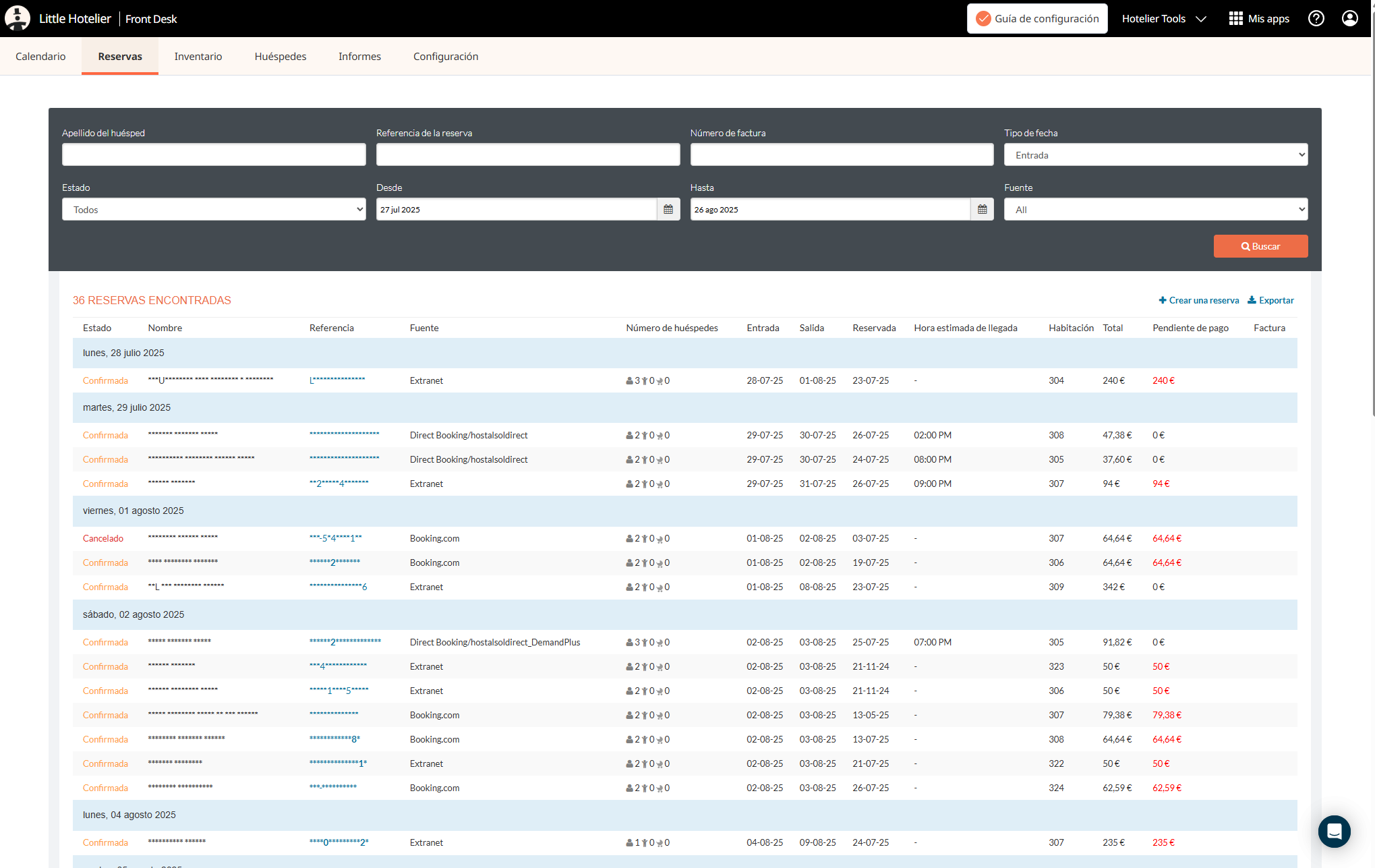
- Click your property name at the top right and select Manage users.
- Click Add user.
- Enter the user's email, name and preferred language.
- Select the apps the user needs (Front Desk, Channel Manager, Direct Booking, Payments).
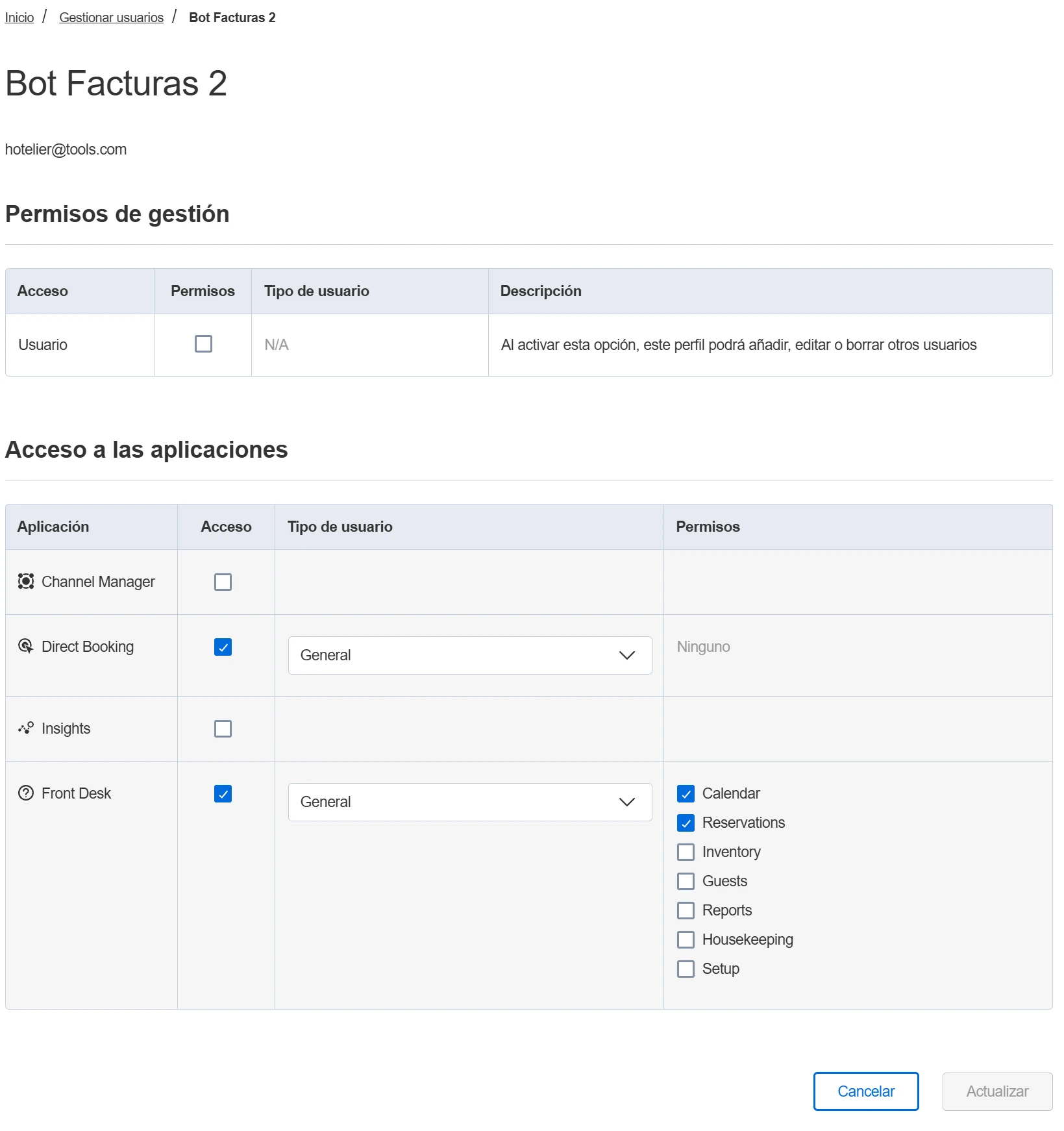
- Choose a user level for each and tick the permissions.
- Click Save.
The new user receives an activation email, valid for 24 hours, to set their password. If that email address already has a Little Hotelier user, no activation email is sent: they sign in with their existing password or use Reset password.
Little Hotelier's newer platform describes the same flow under User management (help-platform article). Use the article that matches the screens you see.
Which permissions to give
- Admin: full permissions.
- General: only what you tick. For Front Desk: Calendar, Reservations, Inventory, Guests, Reports, Housekeeping and Setup. For Channel Manager: Config, Inventory, Reservations and Payments.
A receptionist usually needs Front Desk with Calendar, Reservations and Guests. Give Manage users to as few people as possible.
Change, disable or remove a user
- Edit permissions at any time from the user list.
- Disable is the recommended way to cut access: you can re-enable it later. Delete is permanent.
- The email can't be edited. Create a new user with the right address, then delete the old one.
- A user is locked after 6 or more failed sign-in attempts and unlocks with Forgot password.
Two-factor authentication (MFA) and passkeys
Little Hotelier makes MFA mandatory within 30 days of a user's first login (Set up MFA). Each user picks one method:
- the Little Hotelier mobile app (recommended): confirm a matching number with face or fingerprint;
- an authenticator app such as Google Authenticator, Microsoft Authenticator or Authy (a 6-digit code);
- an authenticator browser extension in Chrome, Edge or Firefox.
Phone, SMS and email codes aren't supported. A user with Manage users can reset another user's MFA (how to), and the user then sets a new method at their next login.
The sign-in page, run by SiteMinder, can also offer Continue with a passkey to a user who has created one. Little Hotelier's help centre doesn't document passkeys as of November 2026, so treat them as optional and keep MFA set up.
One consequence matters for tools: a user with MFA asks for a code at sign-in. A tool that only stores a password stops at that prompt, because nobody is there to answer.
Why a tool should get its own user
Many integrations ask for "your Little Hotelier email and password". Sharing the owner's login has real costs:
- The password expires about every three months, and the tool stops until someone types the new one.
- The log can't tell you apart. Changes made by the tool look like yours.
- Sessions collide. The same user signed in twice may sign one session out.
- When that person leaves, the connection leaves with them.
- MFA on your own login is a prompt the tool can't answer.
A dedicated user for the tool fixes all of it: its own address, its own permissions, its own second factor, and you can disable it without touching anyone else.
The faster way: Hotelier Tools' Advanced account
Hotelier Tools offers two connections on Credentials (/credentials):
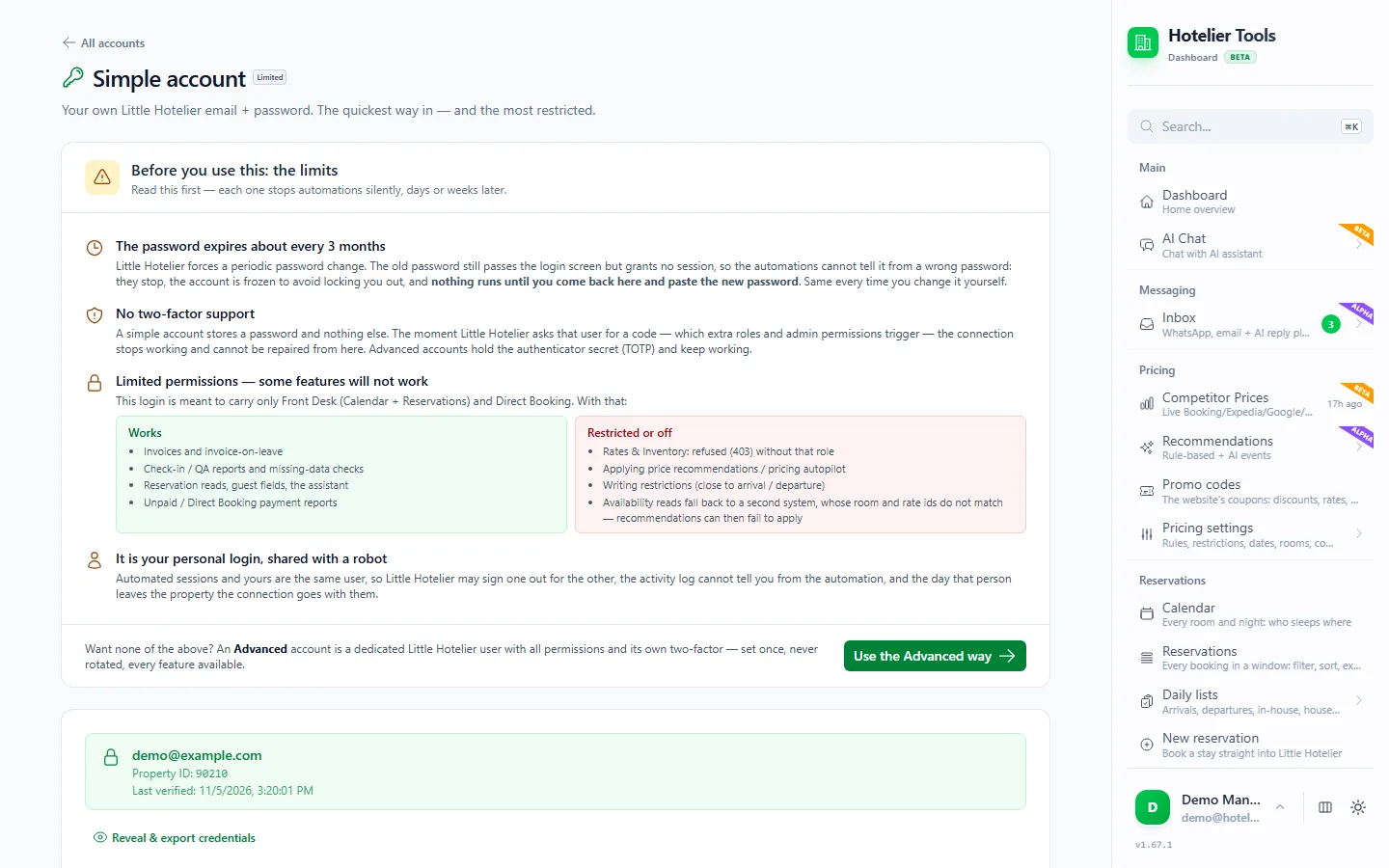
Simple (/credentials/hotelier-simple) | Advanced (/credentials/hotelier-advanced) | |
|---|---|---|
| Login | Your own Little Hotelier email and password | A new Little Hotelier user, only for Hotelier Tools |
| Password | Expires about every 3 months; you paste the new one | Strong, random, set by Hotelier Tools; nobody has to remember it |
| Two-factor | Not supported: a code prompt stops it | Holds its own authenticator secret, and can hold a passkey |
| Permissions | Front Desk (Calendar, Reservations) and Direct Booking | All permissions: every feature works |
The Simple page leads with its limits on purpose: prices and inventory can't be written, and an expired password silently stops automations days later.
Set up the Advanced account (what you do today)
- Open Credentials > Advanced (
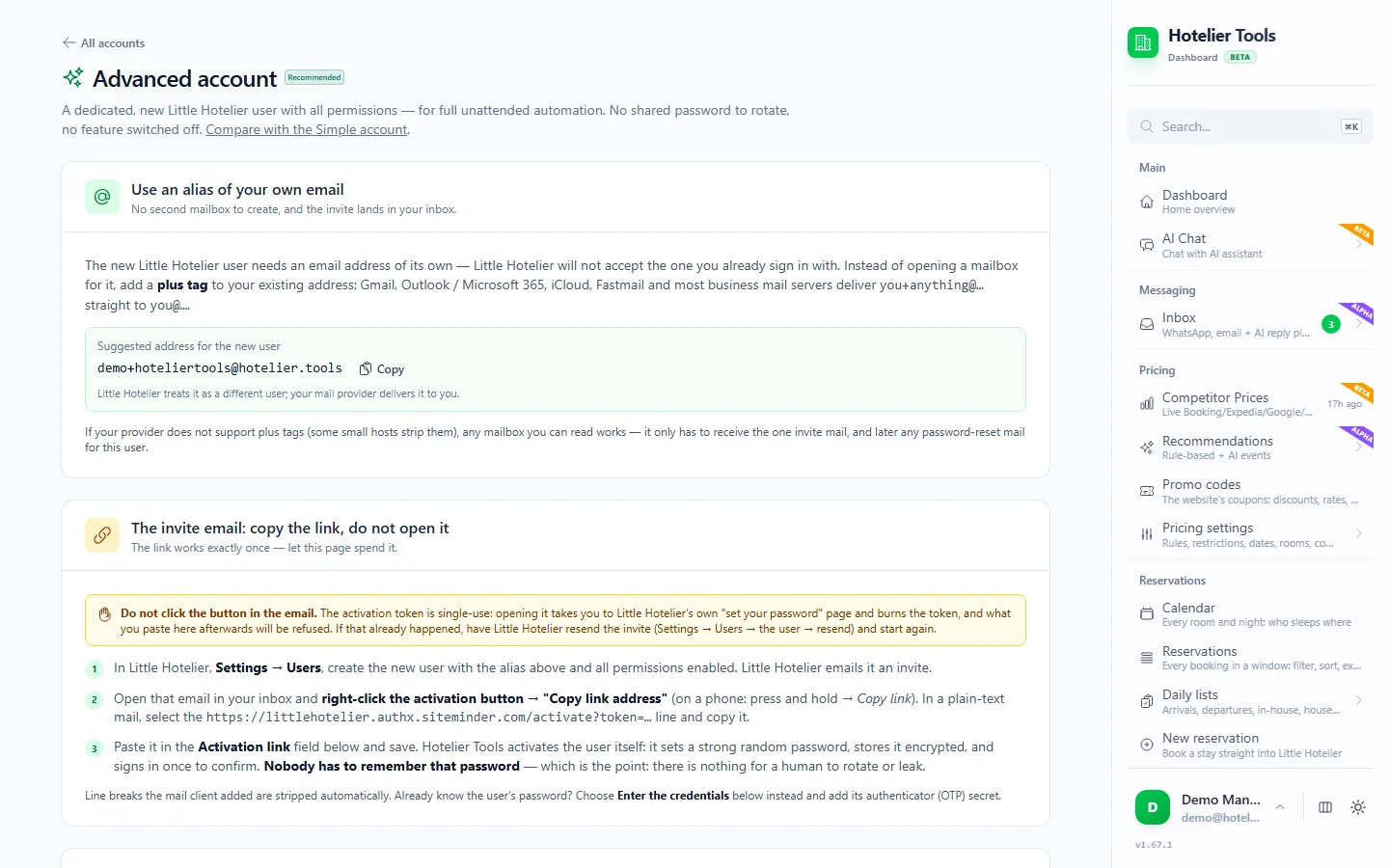
/credentials/hotelier-advanced). Under Use an alias of your own email, copy the Suggested address for the new user, for exampleyou+hoteliertools@yourhotel.com. Little Hotelier needs a new address; a plus tag reaches your own inbox with most providers (Gmail, Outlook / Microsoft 365, iCloud, Fastmail). - In Little Hotelier, add a user with that address and all permissions enabled, using the steps above.
- Open the invitation email and don't click the button. Right-click it and choose Copy link address (on a phone: press and hold, Copy link). The activation token works once: opening it spends it on Little Hotelier's own password page.
- Back on the Advanced page, choose Use an activation link, paste it in Activation link and save.
- Hotelier Tools activates the user: it sets a strong random password, stores it encrypted and signs in once to confirm.
Already created the user and know its password? Choose Enter the credentials instead and add its authenticator (OTP) secret or a passkey.
You can give this user fewer permissions, but Hotelier Tools says plainly that some features will then fail and that setup isn't supported. Writing prices, for example, needs the Rates & Inventory role.
MFA and passkeys on the Advanced user
- When Little Hotelier starts requiring MFA, Hotelier Tools enrols an authenticator on the Advanced user by itself, stores the secret encrypted and answers the code from then on. It never does this on your Simple login, because a secret only the app holds would lock you out of your own account. If it's needed by hand, the account panel has Set up two-step verification.
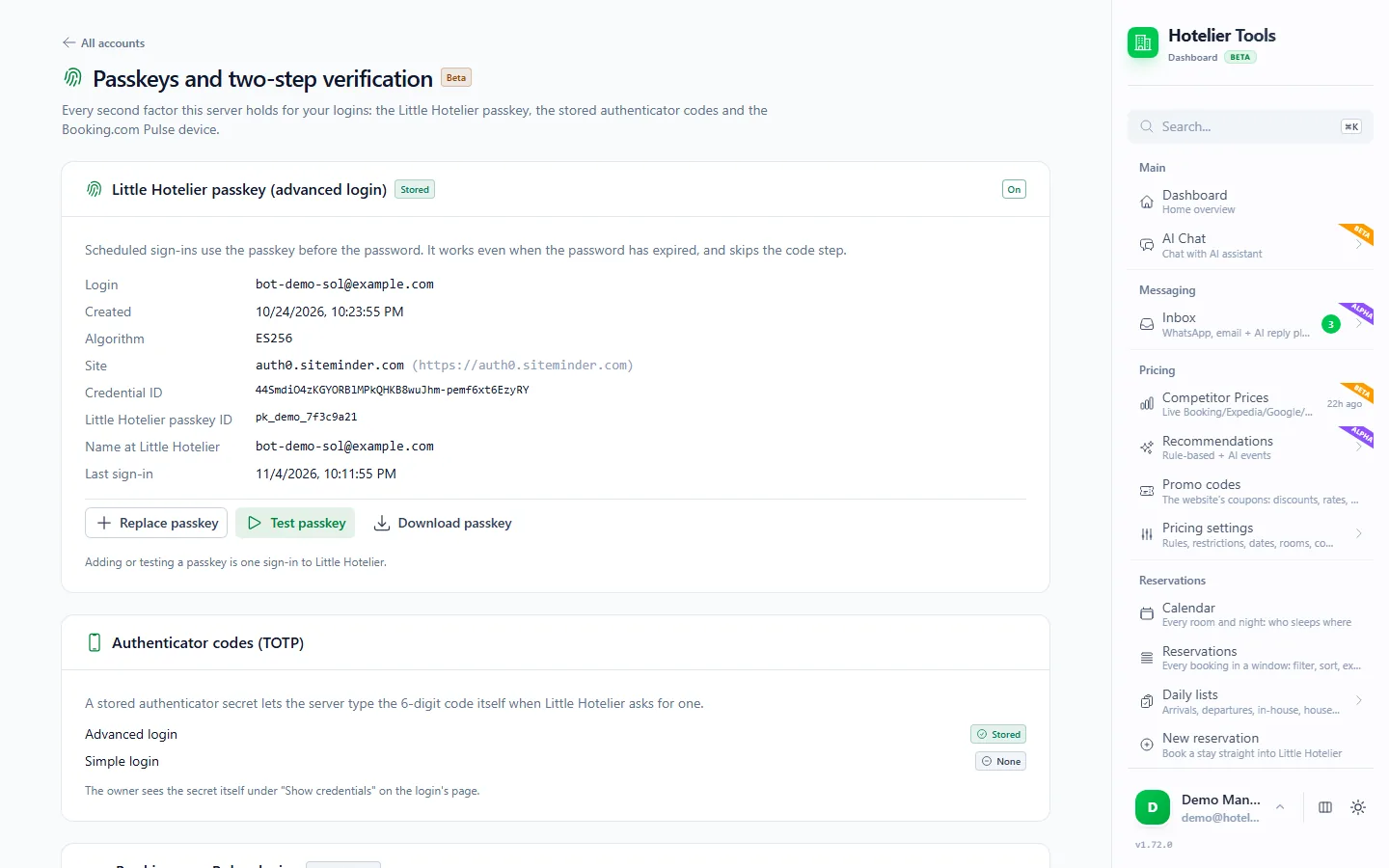
- A server-held passkey (beta). Passkeys and two-step verification (
/credentials/passkeys) can add a passkey to the Advanced user (Add passkey, then Test passkey). Scheduled sign-ins try it first: it works even when the password has expired and skips the code step. Once one is stored, the button reads Replace passkey. The owner can Download passkey to keep a copy. Adding or testing it is one sign-in to Little Hotelier.
To remove it
Disable or delete the user in Little Hotelier. Hotelier Tools' access ends with it, and your own login is untouched.
Coming next: Hotelier Tools as a user, by invitation
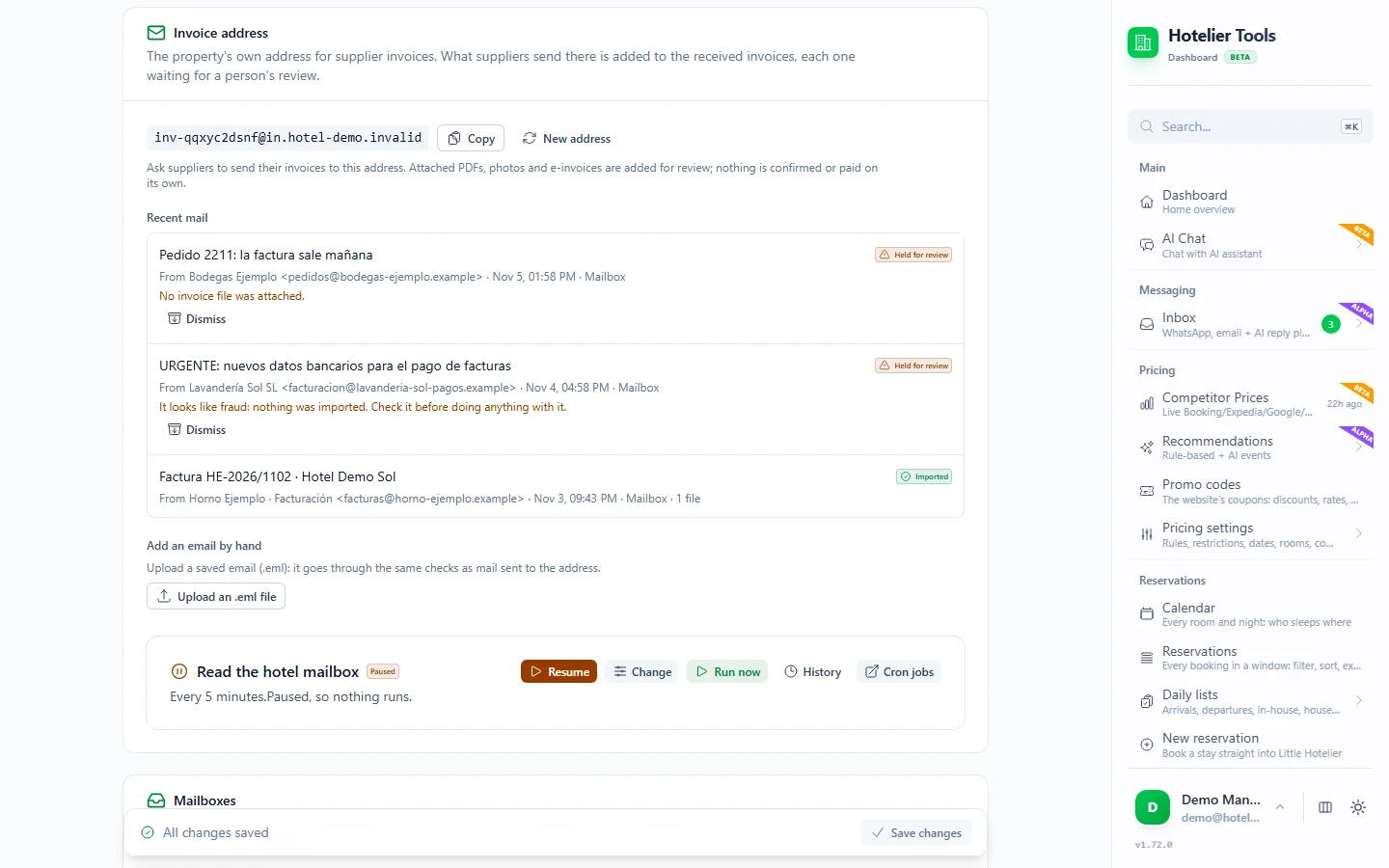
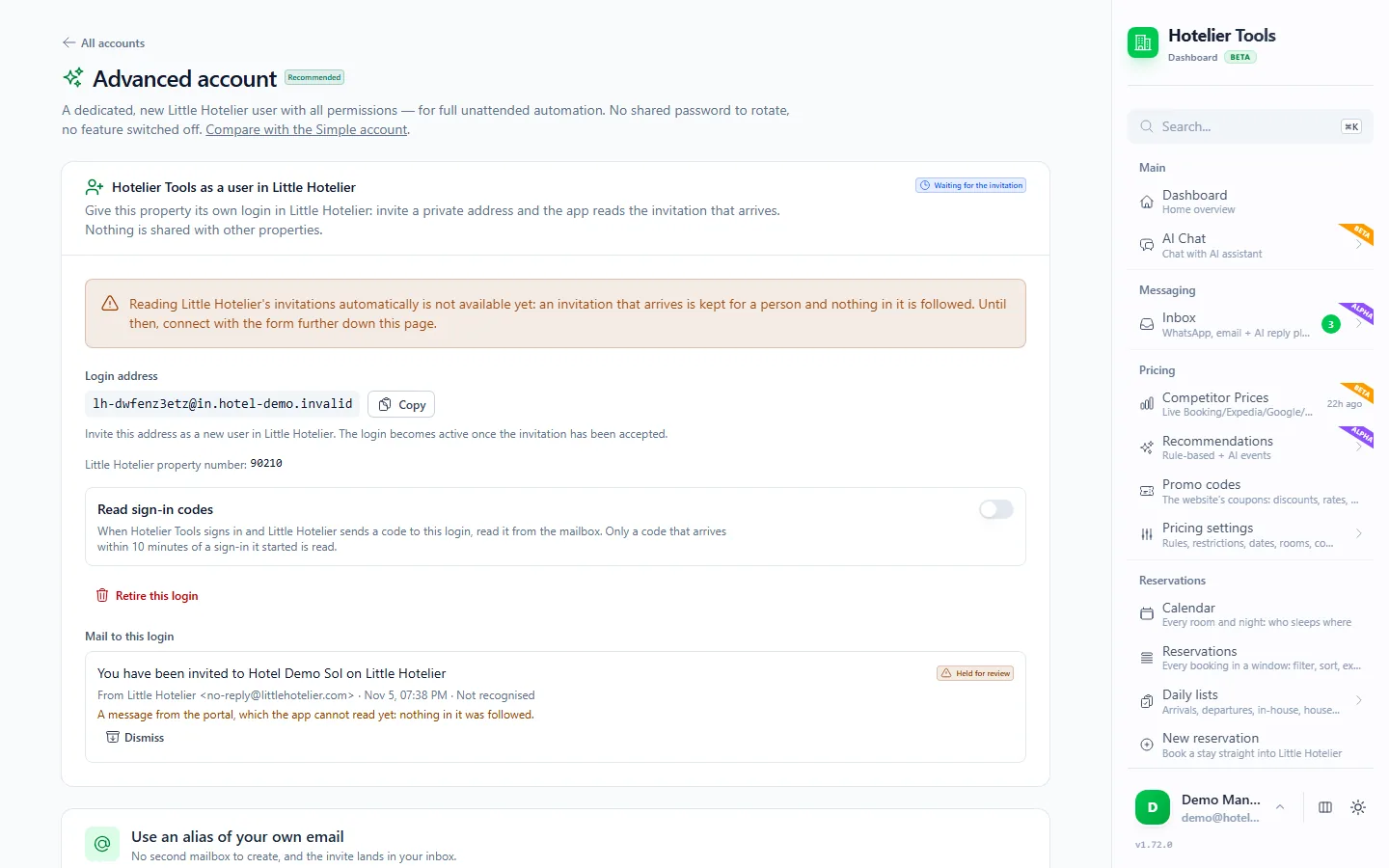
The Advanced page also has a Hotelier Tools as a user in Little Hotelier card. The idea: Hotelier Tools gives your property a private login address on its own domain (lh-…@in.hotelier.tools). You invite that address in Little Hotelier with the permissions you choose, and Hotelier Tools accepts the invitation, sets the password and two-step verification and keeps the session. Nothing is shared with other hotels, and the domain never becomes your main login or recovery email (how these addresses work).
Here is exactly where it stands, as of 5 November 2026:
- Built: the address (Get the login address, after you enter your Little Hotelier property number), the login's states (Waiting for the invitation, Active, Paused, Retired), Retire this login, and the safety rules. Security alerts are forwarded to the owner and never clicked.
- Not built yet: reading and accepting Little Hotelier's invitation. No real invitation has been captured, so every message to the login address is held for a person, and nothing in it is opened. The card says this itself.
- What a person does today: use the activation-link steps above.
Your colleagues: Hotelier Tools team accounts
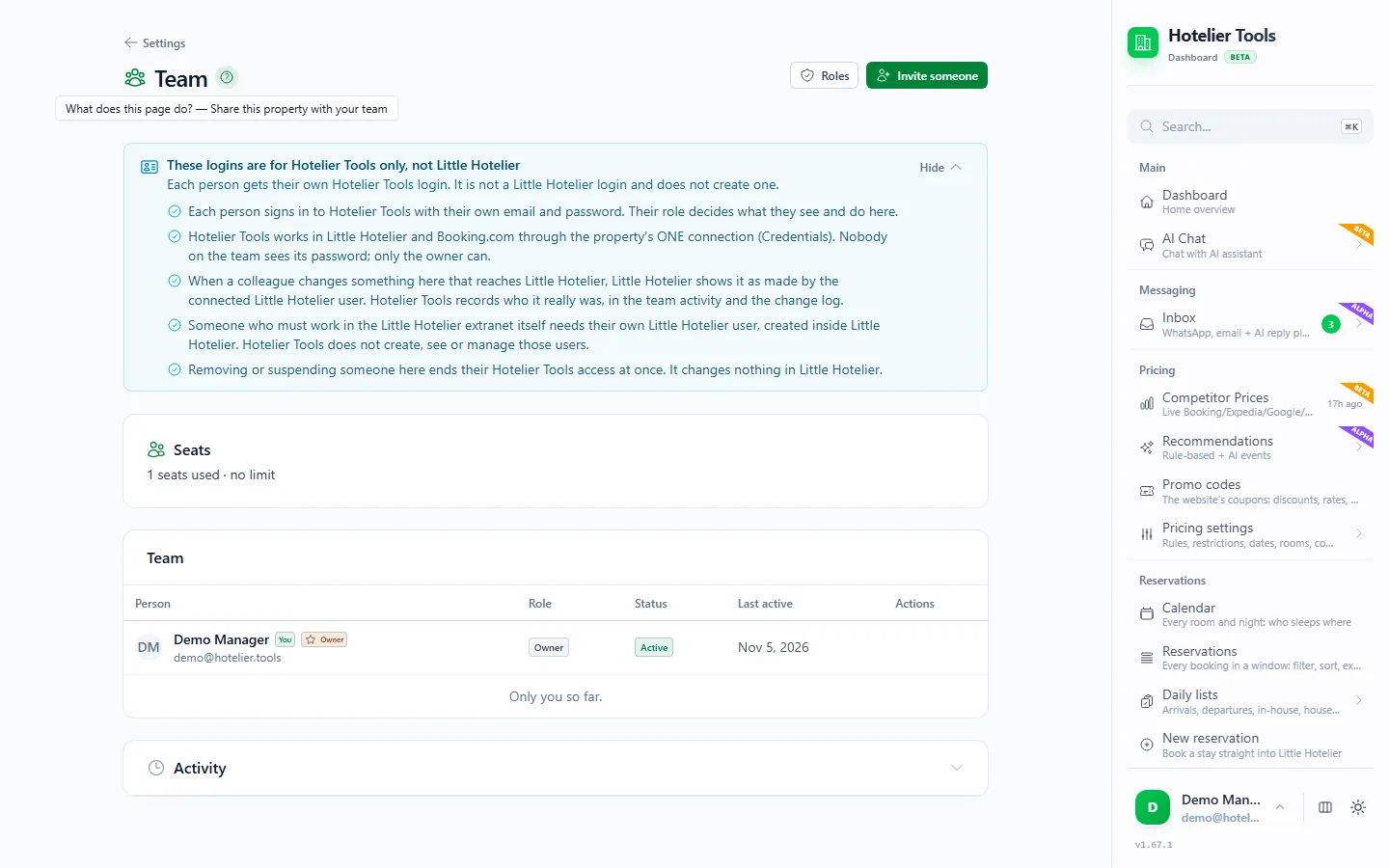
Team members don't need the integration user. On Settings > Team & roles (/settings/team), press Invite someone, enter their email and choose a role: Administrator, Manager, Front desk, Revenue manager, Accountant, Read-only, or a custom role. They accept from the link in the email (valid for 7 days) and sign in with their own Hotelier Tools login.
These are Hotelier Tools logins, not Little Hotelier users. Hotelier Tools works in Little Hotelier through the property's one connection, and nobody on the team sees its password; only the owner can. Changes a colleague makes show in Little Hotelier as the connected user, while Hotelier Tools records who really made them. Someone who works in the Little Hotelier extranet itself still needs their own Little Hotelier user.
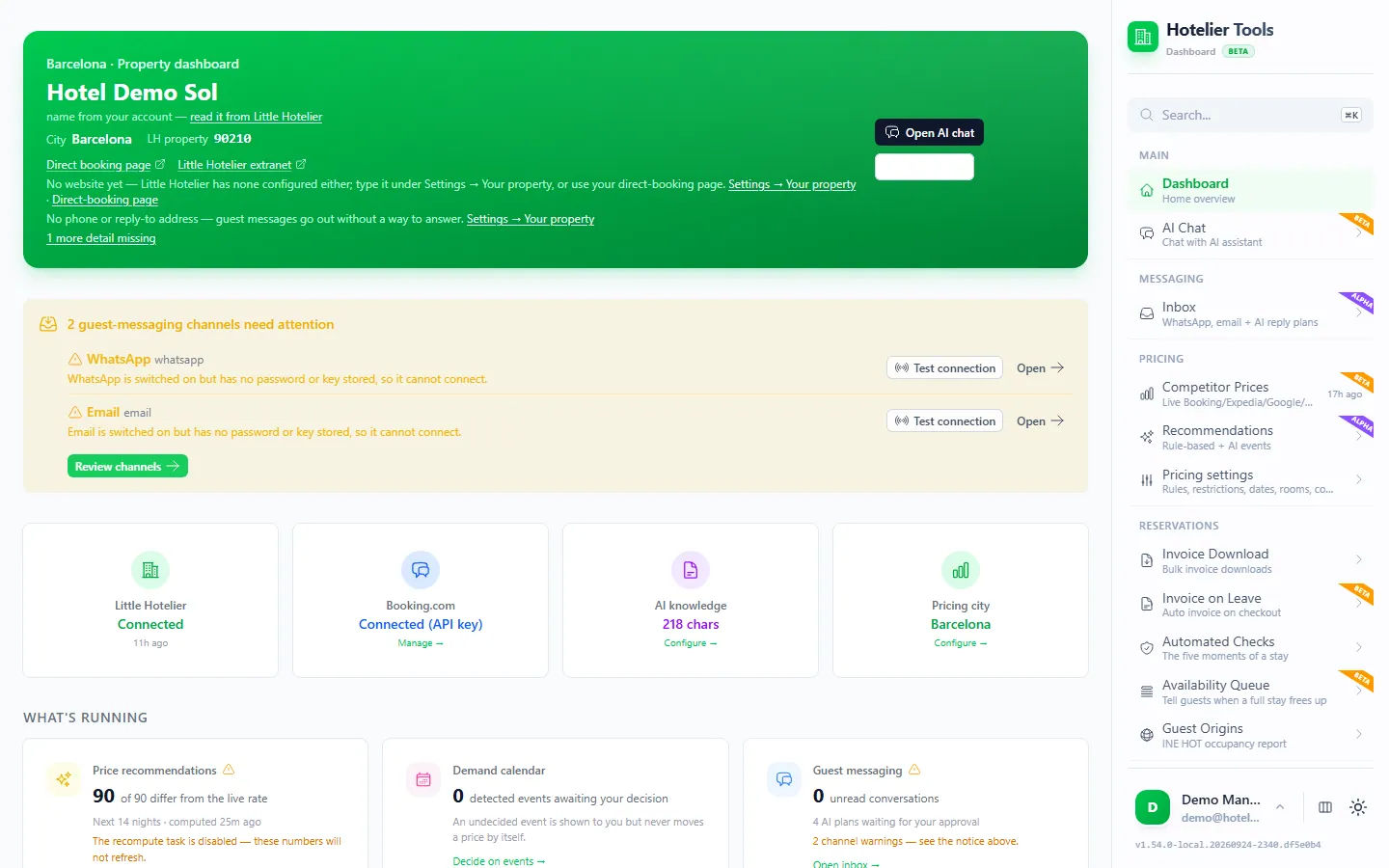
Try it in the live demo
Open the same screen in the Hotelier Tools demo, filled with invented data. No sign-up, nothing to install.
The dashboard is free for every hotel until billing starts on 10 January 2027.
See also: the Little Hotelier API, connecting Claude to Little Hotelier, a hotel email address for logins and invoices.
Summary
- In Little Hotelier: property name > Manage users > Add user, on a trusted device; the activation email lasts 24 hours.
- Admin has everything; General gets only the permissions you tick per app.
- MFA is mandatory within 30 days; SMS and email codes aren't supported.
- Give tools their own user, not your password. In Hotelier Tools, that's the Advanced account: paste the invitation link and it sets the password and two-step verification itself.
- Invitation to a private
lh-…address is coming; today those messages are held for a person. - Colleagues get Hotelier Tools team logins with roles, not your Little Hotelier password.
Frequently asked questions
How do I add a new user in Little Hotelier?
On a trusted device, click your property name at the top right and choose Manage users, then Add user. Enter the email, name and language, pick the apps and the user level, and click Save. The person receives an activation email, valid for 24 hours.
What permissions can a Little Hotelier user have?
An Admin user has full permissions. A General user gets only what you tick per app: for Front Desk, Calendar, Reservations, Inventory, Guests, Reports, Housekeeping and Setup; for Channel Manager, Config, Inventory, Reservations and Payments.
Do I need MFA to add users in Little Hotelier?
Yes. Managing users needs a trusted device, and you must set up multi-factor authentication before you can add one. MFA works with the Little Hotelier app, an authenticator app or a browser extension; SMS and email are not supported.
Should I give an integration my own Little Hotelier password?
It's better not to. A dedicated user for the tool keeps your own login private, shows its actions separately in the log, and can be disabled without touching anyone else. Hotelier Tools calls this the Advanced account.
What happens when the activation link has already been opened?
The activation token works once. If someone clicked the button in the email before pasting the link into Hotelier Tools, have Little Hotelier resend the invitation and copy the new link without opening it.
Is Hotelier Tools part of Little Hotelier?
No. Hotelier Tools is independent and not affiliated with or endorsed by SiteMinder or Little Hotelier. It connects with a Little Hotelier user your hotel creates and controls.