On this page
You can make Little Hotelier faster with free userscripts: small add-ons that run in your browser through the Tampermonkey extension. They add prices to the calendar, widen cramped tables, estimate the Booking.com commission on each booking, put a one-click invoice button on reservations, and more. Install Tampermonkey once, switch on Allow User Scripts in Chrome, then press Install on Tampermonkey on any script's page.
What is Tampermonkey, and why scripts instead of an extension?
Tampermonkey is a browser extension that runs userscripts: small JavaScript files that adjust a web page after it loads. Instead of a separate extension for every tweak, you install Tampermonkey once and add only the scripts you need. It works in Chrome, Edge, Firefox, Safari and Opera.
Each Hotelier Tools script is a single, readable file in a public GitHub repository. There are 16: 15 ready to install and one made on request. All are free forever.
Are userscripts safe? What they can and can't touch
A fair question, since a script runs inside the page where your bookings live. Here is what these scripts do and don't do:
- They only run on Little Hotelier. Each script declares the sites it may run on: Little Hotelier's own addresses (including Direct Booking), plus Chekin's for the Chekin script.
- Your data stays put. The scripts talk to Little Hotelier (and Chekin, for that one script). Nothing is sent to Hotelier Tools.
- They act as you. A script uses your open session, so it can only do what you could do with your own clicks. A few adjust a form before you press Save, such as setting the country or the number of adults.
- You can read them. The code is public, and Tampermonkey shows it before you install.
- They update themselves. Each script carries its GitHub address, so Tampermonkey can fetch new versions.
The general rule for any userscript: install only from sources you trust. And if Little Hotelier changes a page, a script may stop working until it's updated. Switch it off in the Tampermonkey menu and report it on GitHub.
How to install a script (about five minutes the first time)
- Install Tampermonkey from tampermonkey.net. Pick the normal version for your browser, not the beta.
- Let it run scripts. In Chrome 138 or later, right-click the Tampermonkey icon, choose Manage extension and turn on Allow User Scripts. In older Chrome or in Edge, open
chrome://extensions(oredge://extensions) and turn on Developer mode (Tampermonkey FAQ). - Open a script's page on this site, for example Prices Display, and press Install on Tampermonkey. Tampermonkey opens a tab with the code: press Install.
- Reload Little Hotelier (F5). The change appears straight away.
If the button doesn't work, copy the code from GitHub, choose Create a new script… in the Tampermonkey menu, paste it and save with Ctrl+S. The installation guide shows every step with pictures, and all scripts are listed here.
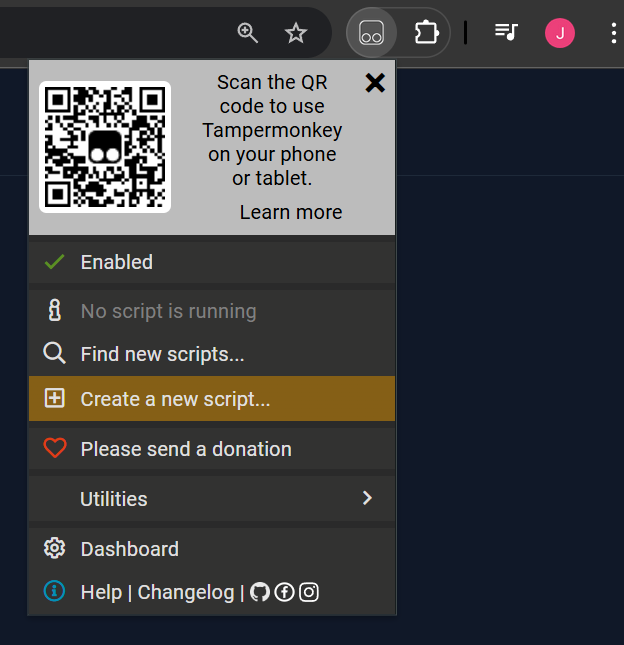
To remove a script, click the Tampermonkey icon and switch it off, or open Dashboard and delete it.
The scripts, grouped by job
Every script has its own page with before-and-after pictures and the install button.
See more on one screen
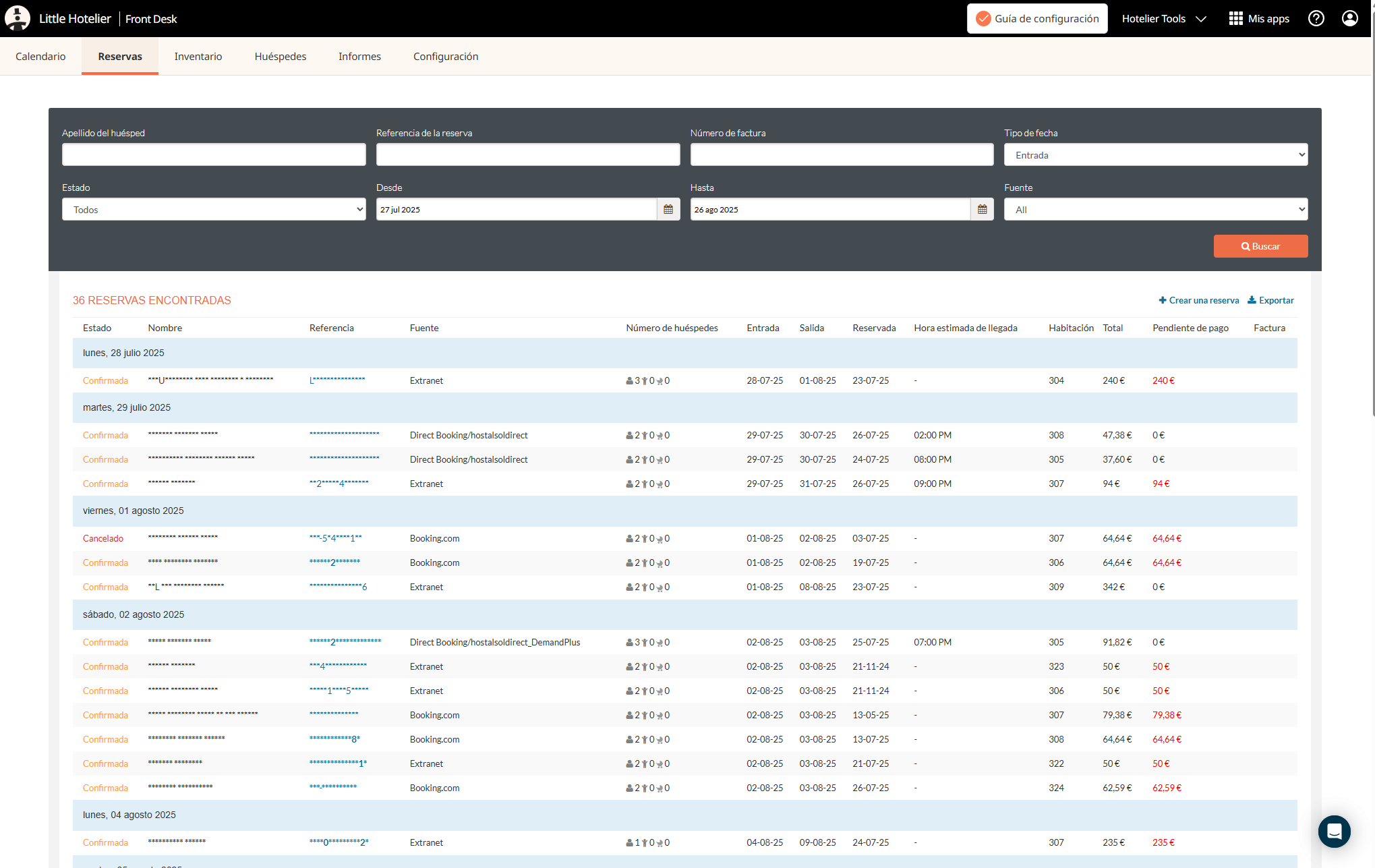
- Full Width Reservation Table: the Reservations list uses the full width of your screen. No more sideways scrolling.
- Tables Full Width: the same for every table in Direct Booking.
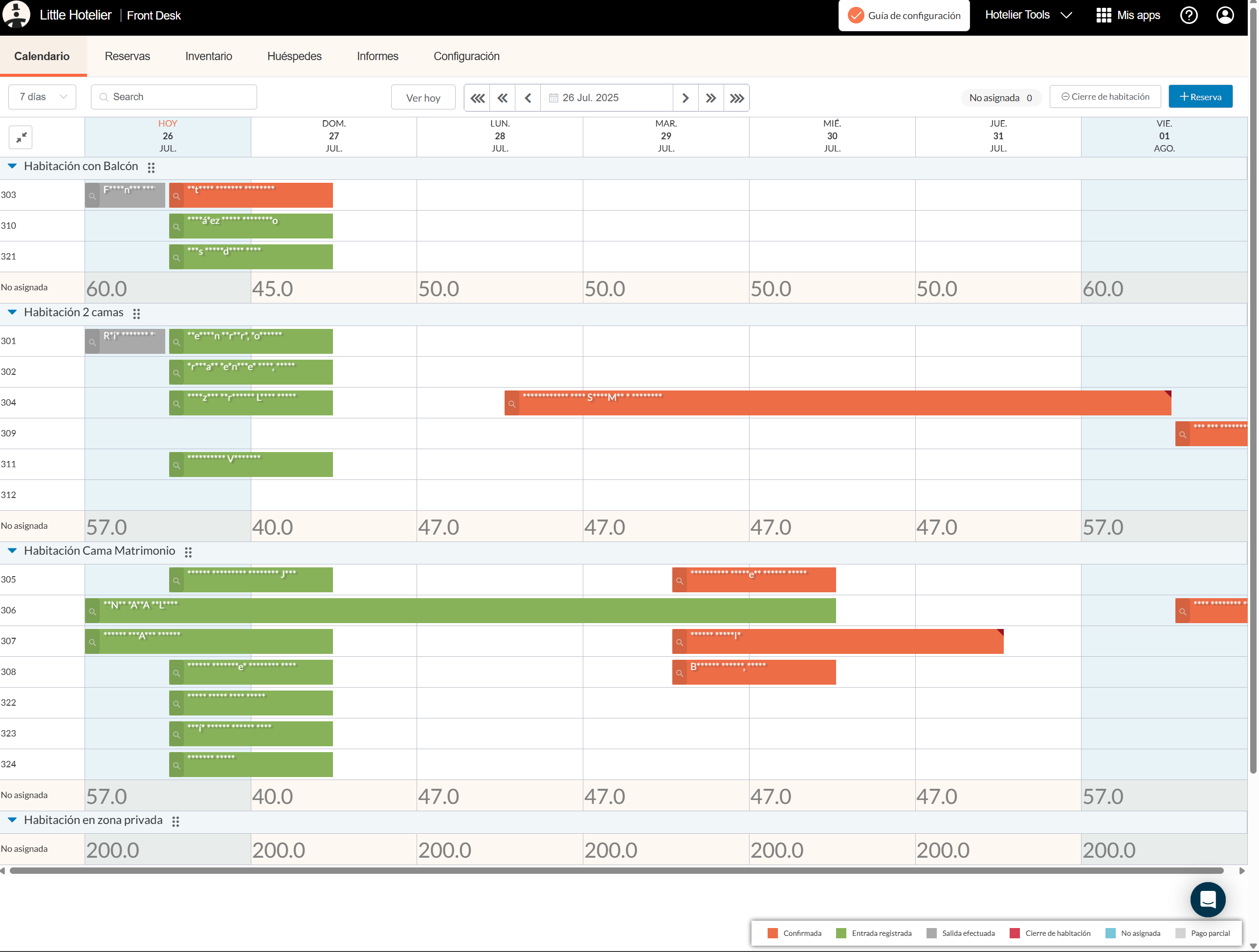
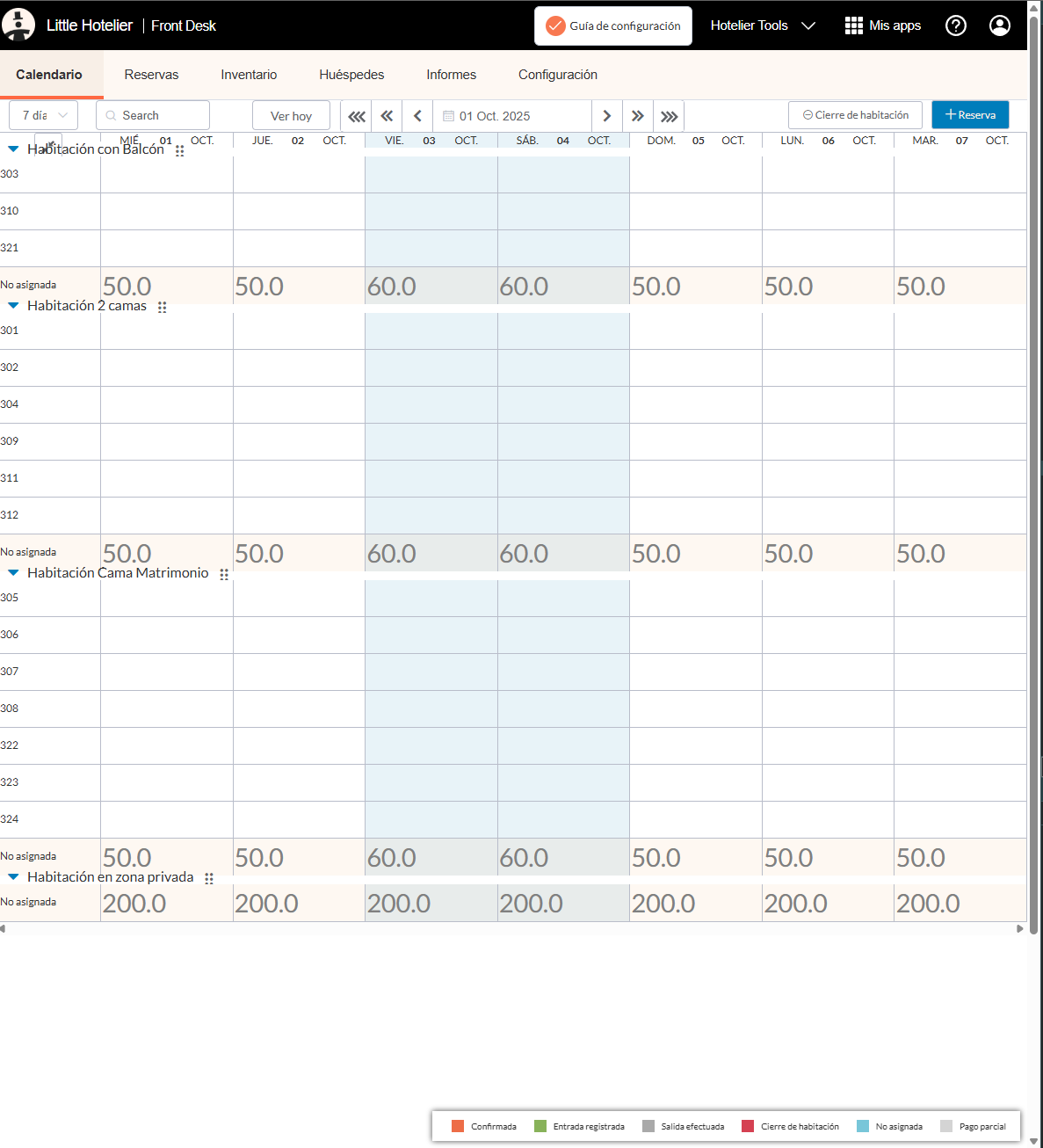
- Compact Calendar UI: day and date on one line instead of three, and shorter room-type rows, so more rooms fit on the calendar.
- Compact UI Reservation Details: a tighter reservation screen with a taller comments box.
Prices and Booking.com commissions
- Prices Display: shows each night's room price on the calendar, read from your Inventory page. Handy when a guest calls to ask about Friday.
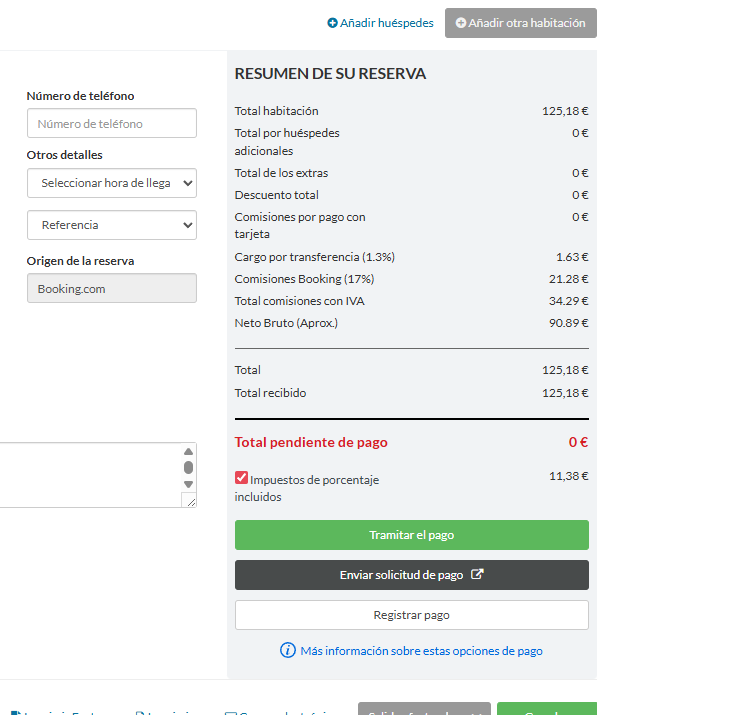
- Show Booking.com Commissions: adds an estimated commission breakdown and an approximate net amount to Booking.com reservations. It's an estimate; your Booking.com invoice is the final figure. More in how much commission Booking.com takes.
- Change Inventory Name: renames the Inventory menu to "Inventory - Prices" (English and Spanish), so new staff find the rates.
Payments and invoices in fewer clicks
- Extra Invoice Print Button: a direct invoice print link on the reservation, without opening the Print menu.
- Update Payment Link Button: clearer wording on the payment-link button, and the guest's phone number is added from the form automatically.
- Bank Transfer Email Button: a button that emails your bank details with pre-filled text. It isn't published yet and is set up on request.
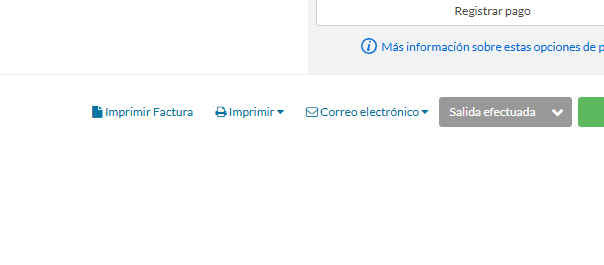
Want the invoice to go out without any click? See how to send the invoice automatically at checkout.
Guest details and check-in
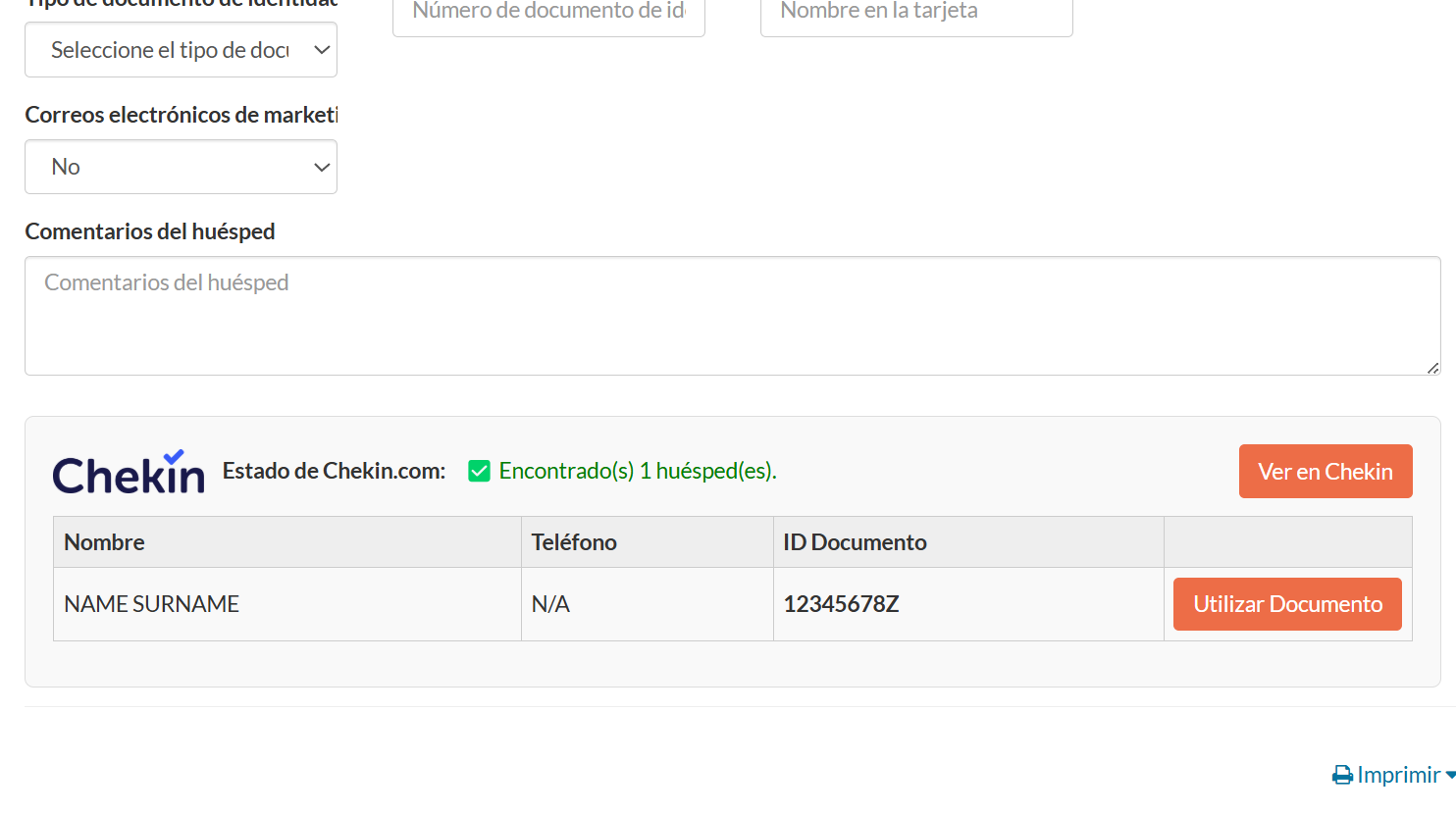
- Chekin Connection: if you use Chekin for online check-in, shows each guest's Chekin registration (name, phone, document number) inside the reservation. You can copy the ID into the invoice and share the registration form by email or WhatsApp. It uses your own Chekin login.
- Easy Save Province and Country: for properties in Spain, a list of Spanish provinces on the province field. Picking one sets the country to Spain, and empty name and surname fields get an underscore.
- Update Number Adults: new reservation forms start at 2 adults instead of 0, which avoids saving a booking with no adults.
Everyday comfort: reloads, tablets and shortcuts
- Auto Refresh On Inactivity: reloads the page after 10 minutes without clicks, mouse movement or scrolling, so you don't come back to an expired session. It never reloads while you're working.
- Improve Style For Touch Screens: bigger buttons and menus for tablets, and the remove-room button that normally only appears on mouse hover is always visible.
- Add Button Check on Front Desk: from a Direct Booking reservation, a button to check it in Front Desk and review refunds. If you're not signed in to Front Desk, you may need to press it twice.
Which scripts to install first
- Front desk on a laptop: Full Width Reservation Table, Auto Refresh On Inactivity, Extra Invoice Print Button.
- Owner or revenue: Prices Display and Show Booking.com Commissions.
- Properties in Spain: Easy Save Province and Country, plus Chekin Connection if you use Chekin.
- Tablet at reception: Improve Style For Touch Screens.
When you need more than interface tweaks
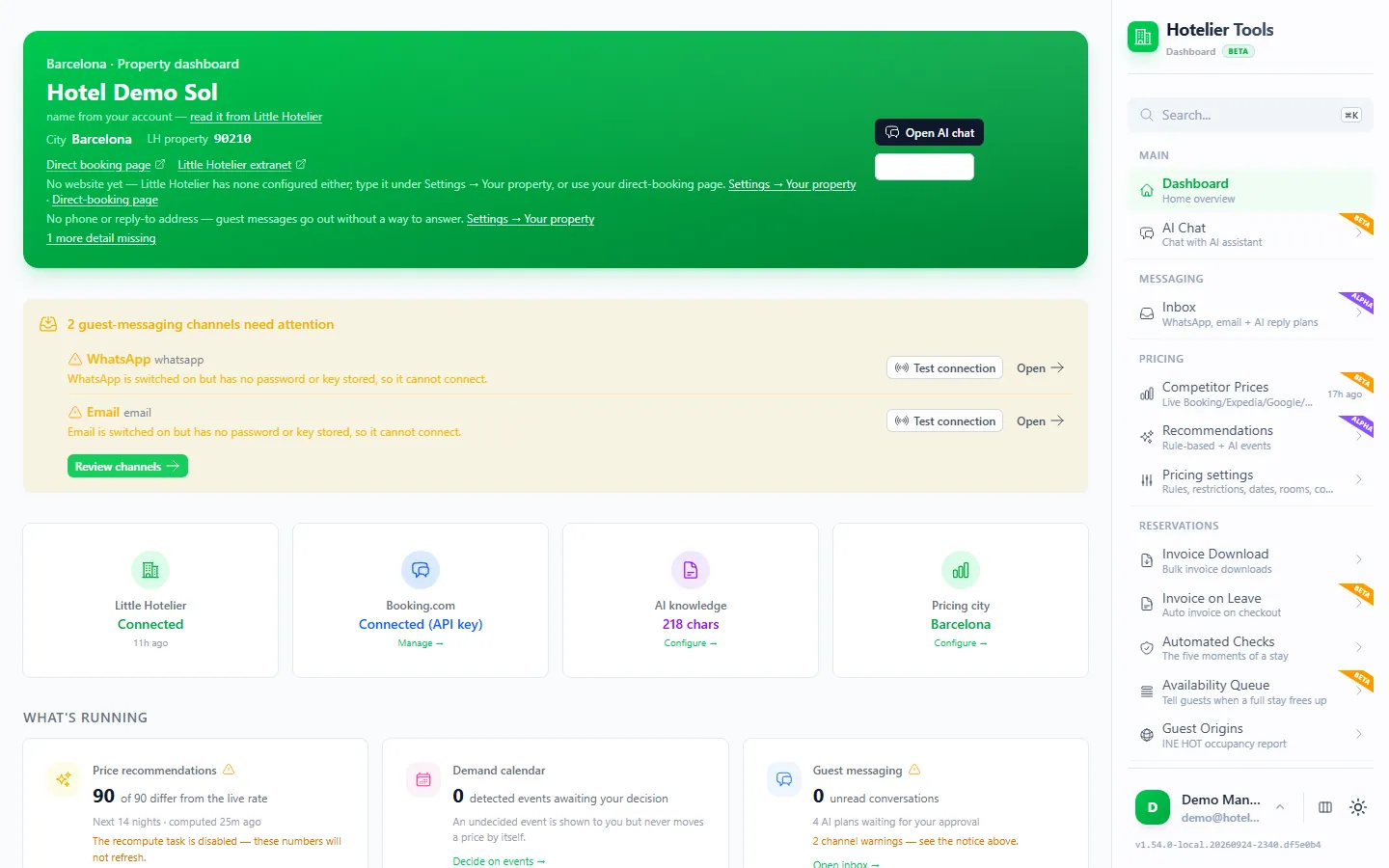
Scripts change what you see while you're in front of the screen. They can't work while you're away. For jobs that run on their own, such as checking every arrival for missing IDs or emailing invoices at checkout, there is the Hotelier Tools dashboard. It's free for every hotel until billing starts on 10 January 2027; the scripts stay free forever. For more shortcuts inside Little Hotelier itself, see Little Hotelier tips and hidden features.
Try it in the live demo
Open the same screen in the Hotelier Tools demo, filled with invented data. No sign-up, nothing to install.
Summary
- Install Tampermonkey once, allow user scripts, then press Install on Tampermonkey on each script you want.
- The scripts run only on Little Hotelier (and Chekin for one of them), send nothing to Hotelier Tools and update themselves.
- Start with the ones that match your job: wider tables and auto refresh for the desk, prices and commissions for the owner.
- If one misbehaves after a Little Hotelier update, switch it off in the Tampermonkey menu.
Frequently asked questions
Are these scripts made by Little Hotelier?
No. They are free, independent scripts published by Hotelier Tools, which is not affiliated with or endorsed by SiteMinder or Little Hotelier. They run in your own browser, inside your own Little Hotelier session.
Tampermonkey or a Chrome extension: which do I need?
Both, in a way: Tampermonkey is the Chrome extension, and the scripts run inside it. You install Tampermonkey once, then add only the scripts you want.
Do the scripts work on a tablet?
Tampermonkey runs in several browsers and its menu offers a version for phones and tablets. For touch screens, install Improve Style For Touch Screens, which makes buttons and menus bigger. Test on your own device first.
Will a script break when Little Hotelier updates?
It can. Scripts change Little Hotelier's pages, so a redesign may stop one from working until it is updated. Switch it off in the Tampermonkey menu and report the problem on GitHub.
How do I uninstall a script?
Click the Tampermonkey icon and switch the script off, or open Dashboard and delete it. Reload Little Hotelier and the page is back to normal.
Do the scripts cost anything?
No. The browser scripts are free forever, with no account needed.