On this page
- Why export before guest data is masked
- How to export reservations from Little Hotelier to Excel
- Which other reports can Little Hotelier export?
- How to open the CSV in Excel without broken accents
- A returning-guest list: what you can export, and what you need
- The faster way: automatic exports with an API
- Summary
Open Reservations, set the dates, press Search, then Export: Little Hotelier downloads a CSV file that opens in Excel or Google Sheets. Do it regularly, because Little Hotelier masks guest personal details 180 days after check-out, and the export never includes phone numbers. If you want a copy that builds itself every month, read the same data through an API.
Why export before guest data is masked
Little Hotelier's help centre says it plainly: "Guest Personally Identifiable Information (PII) is masked 180 days after the reservation check out date" (channel manager search, channel manager reports, booking engine reports).
Two more limits are worth knowing:
- The channel manager's reservation search only finds bookings "created or checked out within the last 548 days".
- Once data is masked, no export or API can bring it back.
So if you need guest details for invoices, a returning-guest list, a dispute or your own statistics, export them while they are still there. Keep only what you have a reason to keep, and store the files somewhere access-controlled: they contain personal data.
How to export reservations from Little Hotelier to Excel
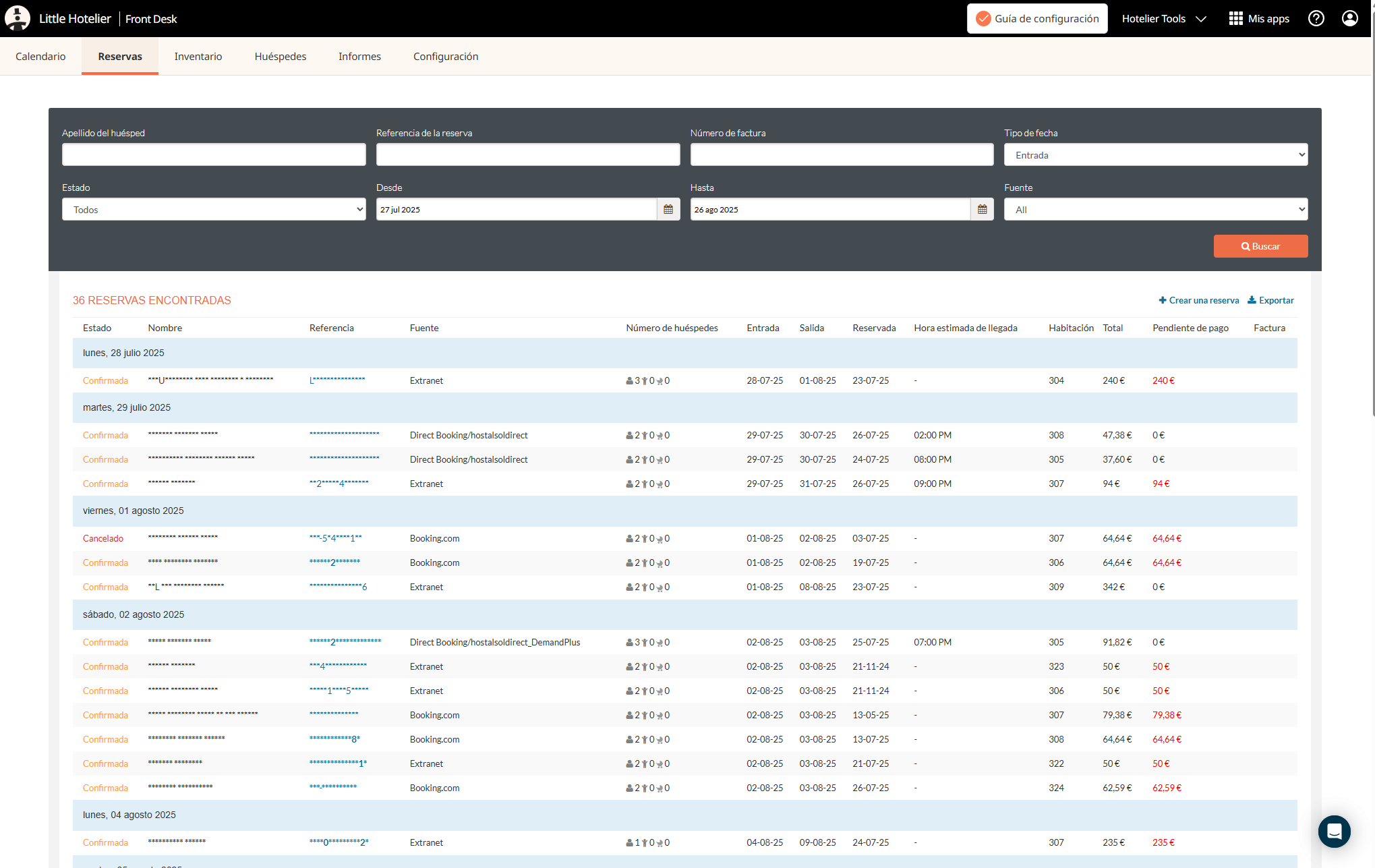
- Open Reservations. On the classic version: My Apps → Front Desk → Reservations.
- Set Date type (Check-in date, Check-out date or Booked on date), then Date from and Date to. A calendar month is a good unit.
- Pick a Status if you want one: All, Confirmed, Checked-in, Checked-out or Cancelled.
- Click Search.
- Click Export. The file downloads as a
.csv. On the newer platform, Little Hotelier asks for your MFA code or passkey before exports of reservations, guests, payments, revenue and invoices.
Two details from the help centre save confusion:
- If a search returns a lot, the screen only shows the first 31 days. The export contains everything.
- To count guests for a period, set Date type and Status to match (check-in with Checked-in, check-out with Checked-out). The classic guide caps that export at 365 days.
What is in the CSV (and what is not)
The export has more columns than the screen. According to Little Hotelier, you get:
- Booking: reference, booked date, channel, status, canceled-at date
- Guest: first and last name, email, organization, full address
- Stay: check-in, check-out, nights, arrival time, guest comments, room types, rooms, rate plans
- Money: subtotal, extras, surcharges, taxes, payments received, outstanding balance
- Guests: adults, children, infants; answers to custom booking questions
Not included: phone numbers ("for security reasons") and a change history, such as the exact time a guest was checked in.
Which other reports can Little Hotelier export?
Most reports have an Export button that produces a CSV. Paths are for the newer platform, except the channel manager and booking engine rows, which come from the classic version (under My Apps). Classic accounts find most other reports under My Apps → Front Desk → Reports.
| Report | Where | What you get |
|---|---|---|
| Guests | Reports → Operational → Guests | Guests who stayed, by date range |
| Invoices | Reports → Operational → Invoices | Invoice list as CSV, PDFs as a ZIP |
| Accounting | Reports → Operational → Accounting | Finalized invoices, laid out for Xero and QuickBooks |
| Revenue (7 views) | Reports → Strategic → Revenue | Summary, room type, room, rate plan, channel, taxes, extras |
| Channel manager | Channel Manager → Reports | Reservation summary, room stays, check-ins, channel yield |
| Booking engine | Direct Booking → Reports | Bookings with device used and GDPR consent |
| Spanish police | Reports → Operational → Police report | Spain only: guest records for the police register |
Sources: Getting started with Reports, Invoice report, Accounting export, Revenue reports.
Tip: the Summary revenue export has a "Rate per night" column, one row per night. It is the quickest way to see what each night of a long stay was sold at.
How to open the CSV in Excel without broken accents
If names like "José" turn into "José", Excel guessed the wrong encoding. Import the file instead of double-clicking it:
- In Excel, go to Data → From Text/CSV and pick the file (Microsoft's steps).
- Set File Origin to 65001: Unicode (UTF-8) and Delimiter to Comma.
- Click Load.
In Google Sheets, use File → Import → Upload and leave the separator on automatic. Sheets reads UTF-8 correctly.
A returning-guest list: what you can export, and what you need
The reservations CSV has names, emails and addresses, which is enough for a thank-you or a "come back" email. Before you send anything, check who agreed to hear from you:
- The booking engine report export has a GDPR consent column. Little Hotelier says it is filled when the guest consented and empty when they did not (source).
- If you use Guest Engagement, Guest engagement → Guests → Mailchimp export sends guests to a Mailchimp list. All guests are exported "regardless of GDPR consent status", with the opt-in status marked, so filter on it (source).
Marketing rules differ by country. Email only guests who opted in, unless you have confirmed with an adviser that another basis applies.
The faster way: automatic exports with an API
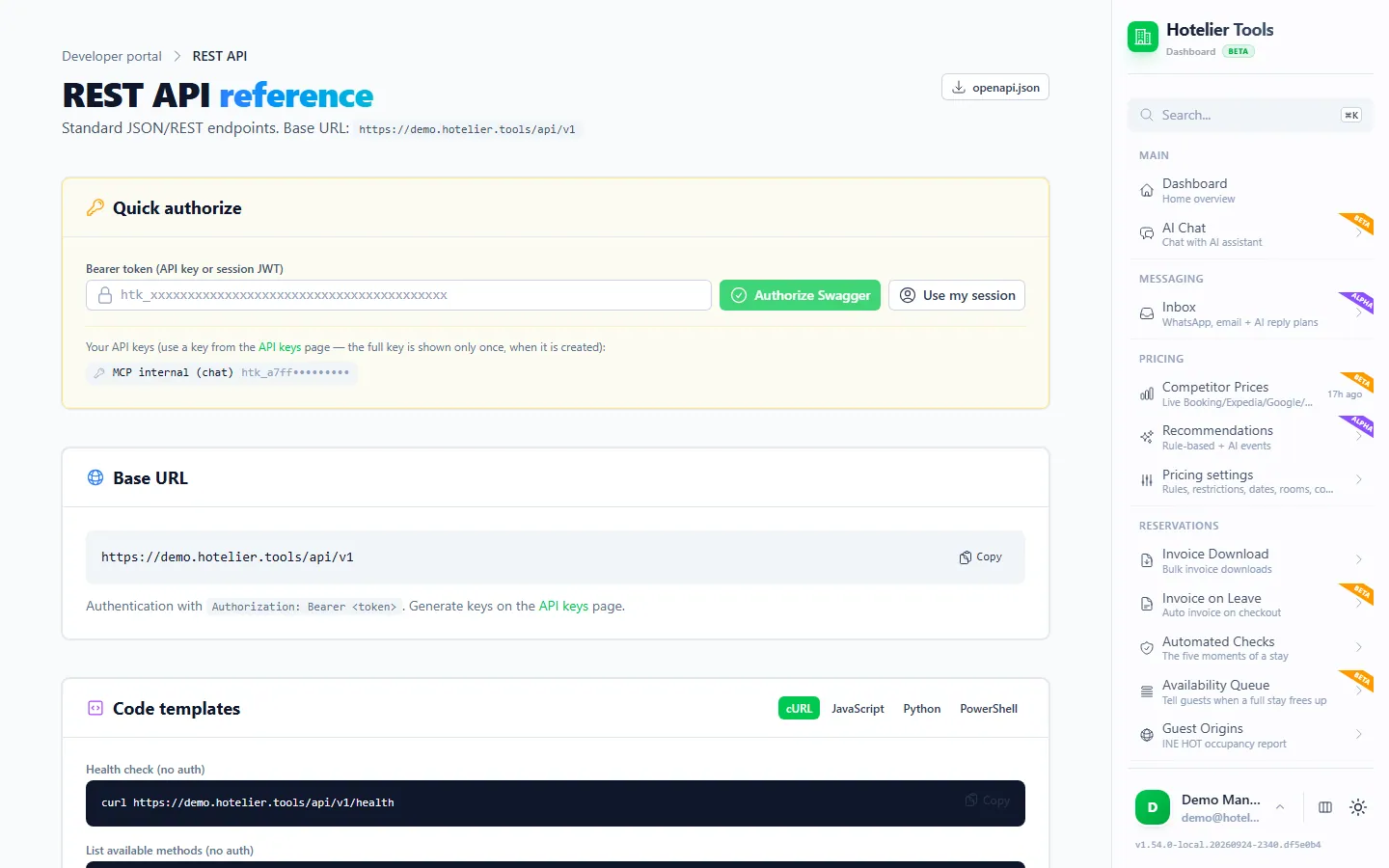
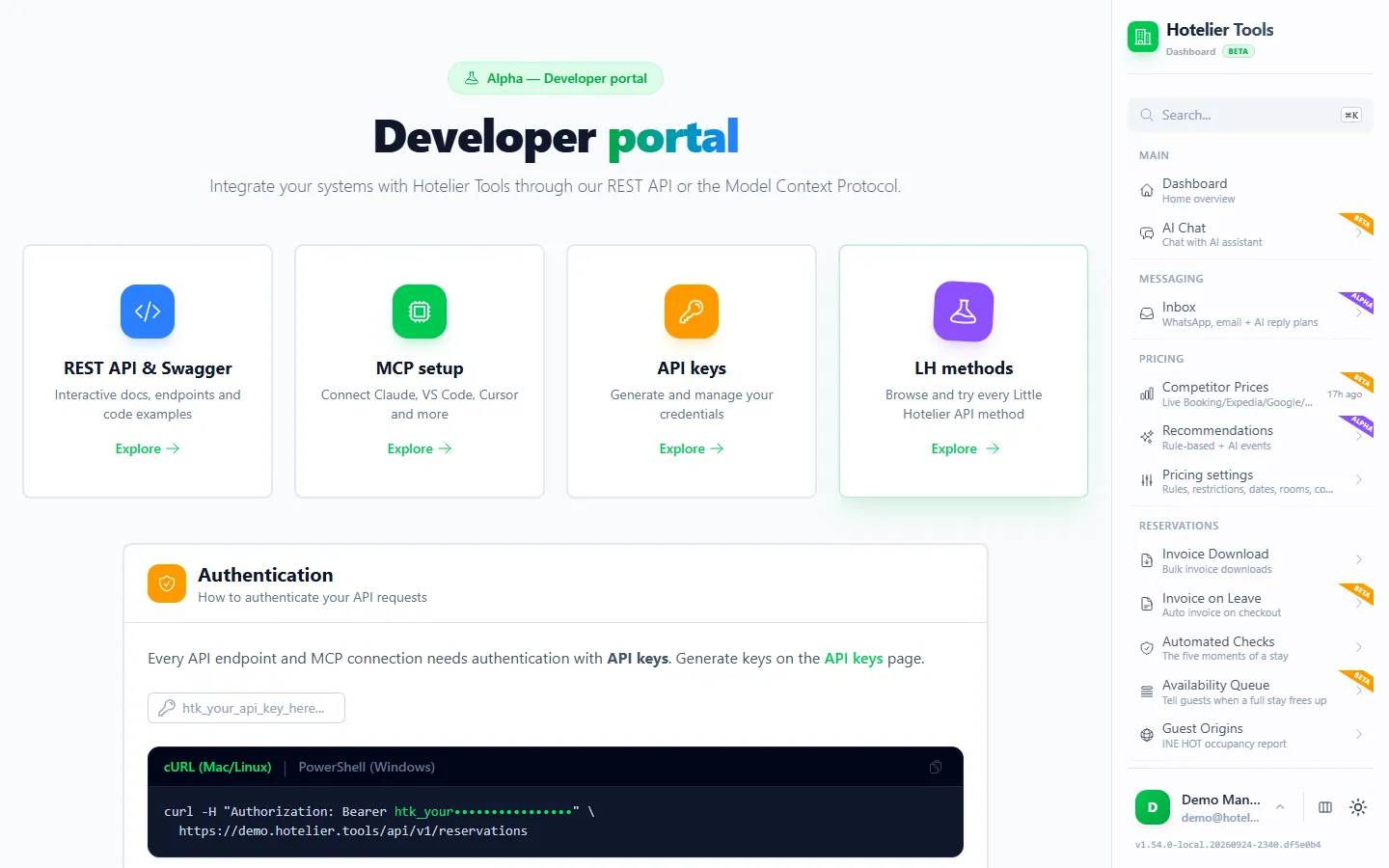
Little Hotelier has no API key for your reservations (the details are in does Little Hotelier have an API?). Hotelier Tools, an independent dashboard, connects with your own Little Hotelier login and gives you a REST API and an MCP server for AI assistants. It is not affiliated with or endorsed by SiteMinder or Little Hotelier, and it is free for every hotel until billing starts on 10 January 2027.
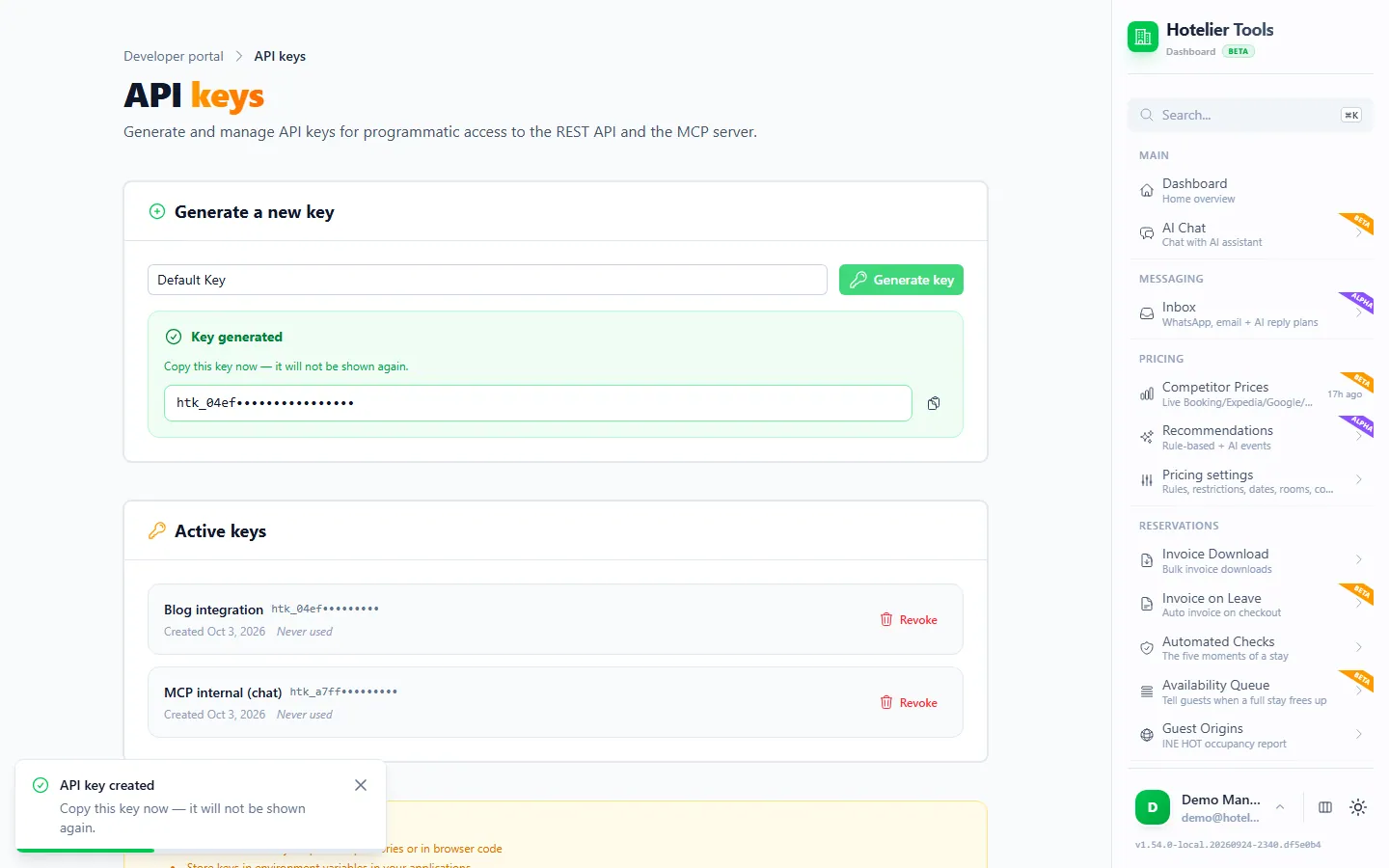
First create a key: Developer → API & MCP → API Keys (/developer/api-keys), type a name, press Generate key and copy it. The page shows it only once.
No code: run the export from the dashboard
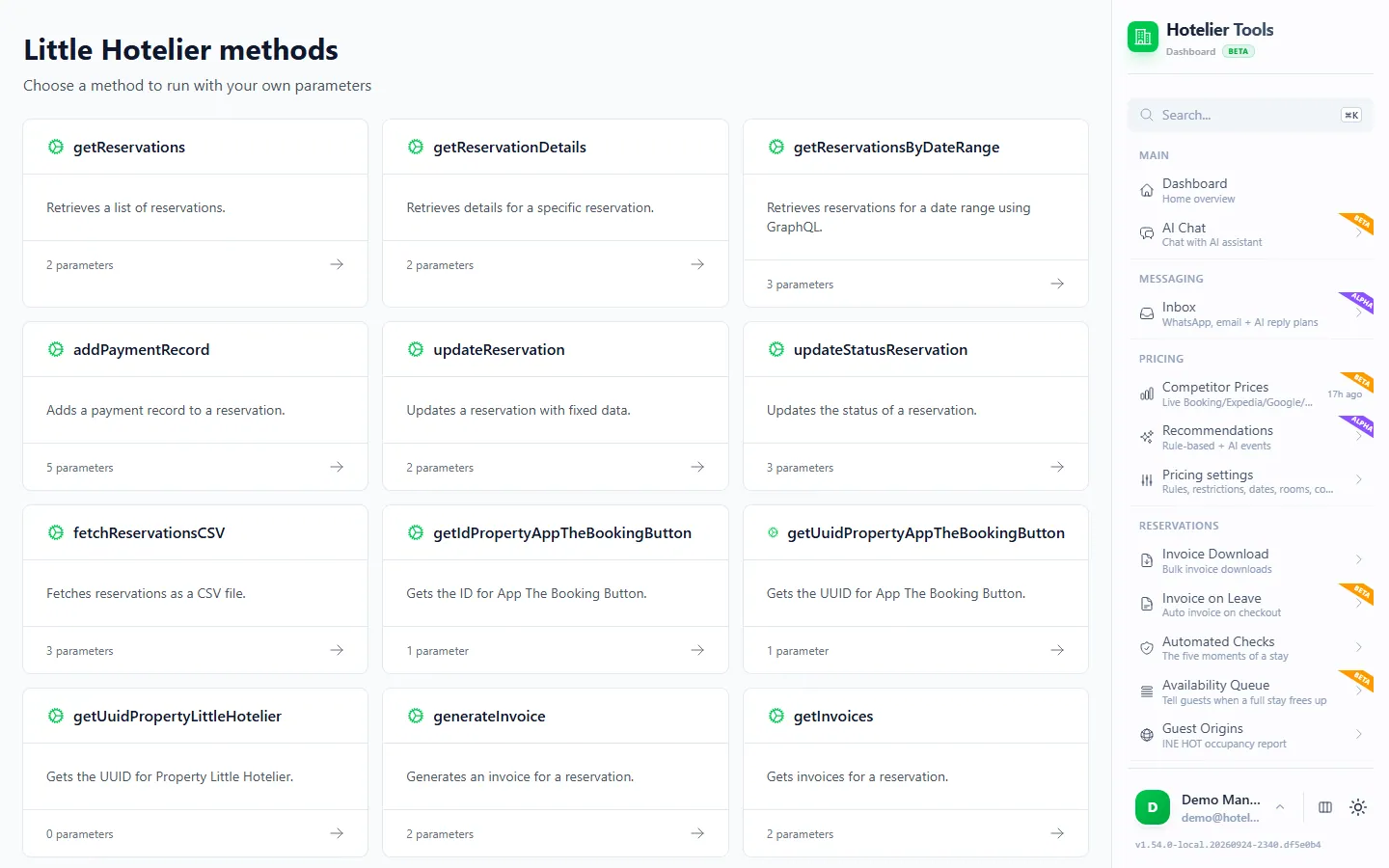
- Open LH Methods (
/methods) and choosefetchReservationsCSV. - Fill in
dateFromanddateTo(for example2026-09-01and2026-09-30). - Run it. The method fetches your reservations as CSV, which you can paste into a sheet.
Google Sheets, refreshed every month
This Apps Script adds a tab with last month's reservations (by check-in date) each time it runs.
- In a new Google Sheet, open Extensions → Apps Script.
- In Project Settings, add a script property named
HT_API_KEYwith yourhtk_…key. That keeps the key out of the code. - Paste this code and save:
function importLastMonth() {
  const key = PropertiesService.getScriptProperties().getProperty('HT_API_KEY');
  const tz = Session.getScriptTimeZone();
  const now = new Date();
  const start = new Date(now.getFullYear(), now.getMonth() - 1, 1);
  const end = new Date(now.getFullYear(), now.getMonth(), 0);
  const day = d => Utilities.formatDate(d, tz, 'yyyy-MM-dd');

  const url = 'https://dashboard.hotelier.tools/api/v1/reservations'
    + '?startDate=' + day(start) + '&endDate=' + day(end) + '&limit=100';
  const res = UrlFetchApp.fetch(url, { headers: { Authorization: 'Bearer ' + key } });
  const rows = JSON.parse(res.getContentText()).data || [];
  if (!rows.length) return;

  const headers = Object.keys(rows[0]);
  const values = rows.map(r => headers.map(h =>
    r[h] !== null && typeof r[h] === 'object' ? JSON.stringify(r[h]) : r[h]));

  const ss = SpreadsheetApp.getActive();
  const name = Utilities.formatDate(start, tz, 'yyyy-MM');
  const sheet = ss.getSheetByName(name) || ss.insertSheet(name);
  sheet.clearContents();
  sheet.getRange(1, 1, 1, headers.length).setValues([headers]);
  sheet.getRange(2, 1, values.length, headers.length).setValues(values);
}
- Click Run once and allow access when Google asks.
- To schedule it, open Triggers → Add Trigger, choose
importLastMonth, event source Time-driven, and a Month timer on day 1 (Google's guide).
The API returns up to 100 reservations per call. If a month fills all 100 rows, split it into two halves. Anyone who can edit the script can read the key, so share the sheet carefully, and revoke the key on /developer/api-keys if it leaks.
Ask an AI assistant to build the table
If you have connected Claude or ChatGPT to Hotelier Tools (see connect Claude to Little Hotelier), ask in plain words:
Using Hotelier Tools, list every reservation that checked out in September 2026 as a table: booking reference, guest name, email, check-in, check-out, nights, channel and total. Then give me the same table as CSV.
The assistant reads your reservations through the MCP server and returns the table. Remember that what it reads (names, emails, amounts) becomes part of your chat with that AI provider.
Try it in the live demo
Open the same screen in the Hotelier Tools demo, filled with invented data. No sign-up, nothing to install.
Summary
- By hand: Reservations → Search → Export gives a CSV with guest names, emails and addresses, but no phone numbers.
- Deadline: guest details are masked 180 days after check-out, so export every month.
- Accents: import with Data → From Text/CSV and UTF-8 in Excel.
- Automatic: a Google Sheets trigger with the Hotelier Tools API, or a request to your AI assistant. More on the API & MCP feature page.
Frequently asked questions
What exactly is masked after 180 days?
Little Hotelier says guest personally identifiable information (PII) is masked 180 days after the reservation's check-out date. The booking is still there, but reports and searches no longer show the guest's personal details. Export what you need before that date.
Why are phone numbers missing from my Little Hotelier export?
Little Hotelier leaves guest phone numbers out of the reservations CSV for security reasons. You can still see a phone on the reservation or guest profile, and the guest search in the Hotelier Tools API returns a phone_number field when Little Hotelier has one.
Can I schedule the export inside Little Hotelier?
The help centre articles we checked in October 2026 describe running and exporting reports by hand, with no scheduled export. To automate it, use a script or a Google Sheets trigger that reads the data through an API.
Can I export more than a year at once?
Little Hotelier caps the guest-totals export at 365 days, and the channel manager's reservation search only reaches 548 days back. Export one year (or one month) at a time and keep the files.
How do I export only Booking.com reservations?
Filter by channel in the Channel Manager reports, or export everything and filter the booking reference in Excel. References starting with BDC are Booking.com, EXP Expedia, ABB Airbnb, AGO Agoda, HWL Hostelworld and LH your own front desk or booking engine.